1. Virtual Machine
1.1. Overview
This manual aims to introduce how to use the FAIRINO SimMachine virtual machine.
1.2. Operating Instructions
1.2.1. Installing VMware Workstation
VMware Workstation demo version: 17.6.3 (skip this step if already installed).
Directly search for the VMware official website in your browser or click the URL https://www.vmware.com, then download the installation package and install it using the default path.
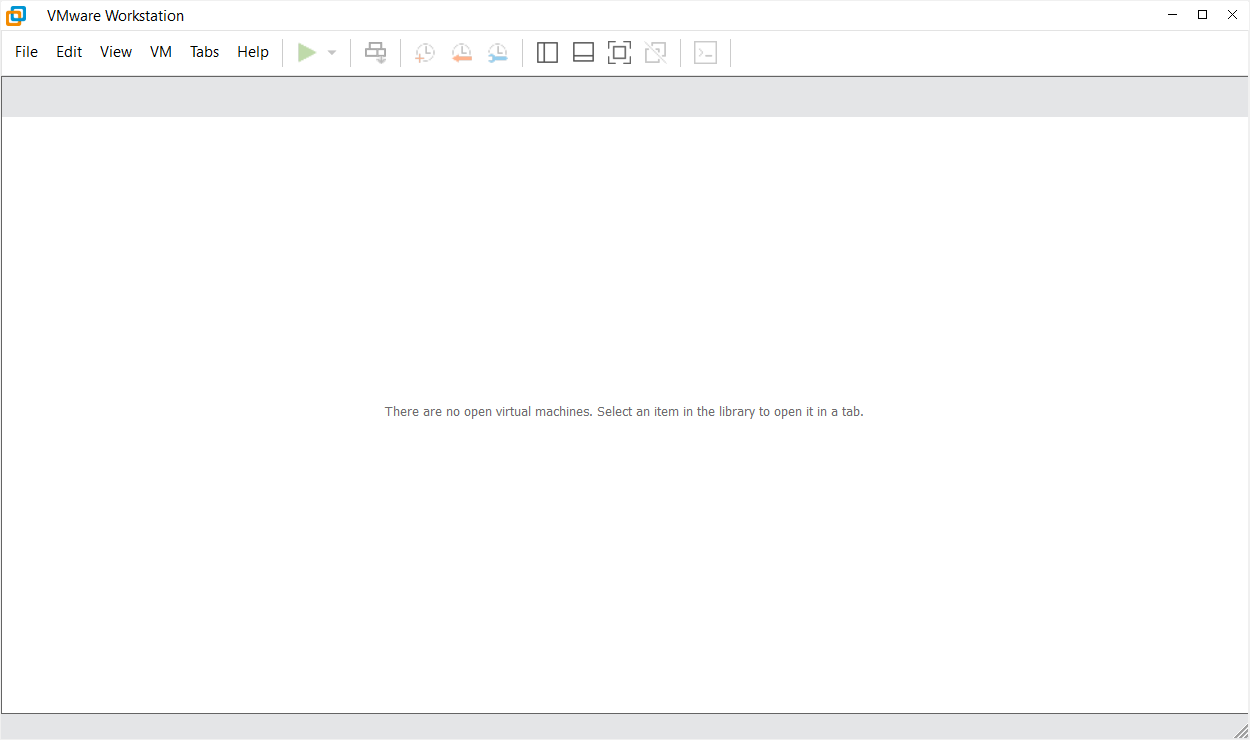
Figure 6.2-1 VMWare Interface
1.2.2. Opening the Virtual Machine Image
Download the virtual machine image FAIRINO_SimMachine.zip and extract it.
Open VMware, click File->Open. As shown in Figure 2-2 below:
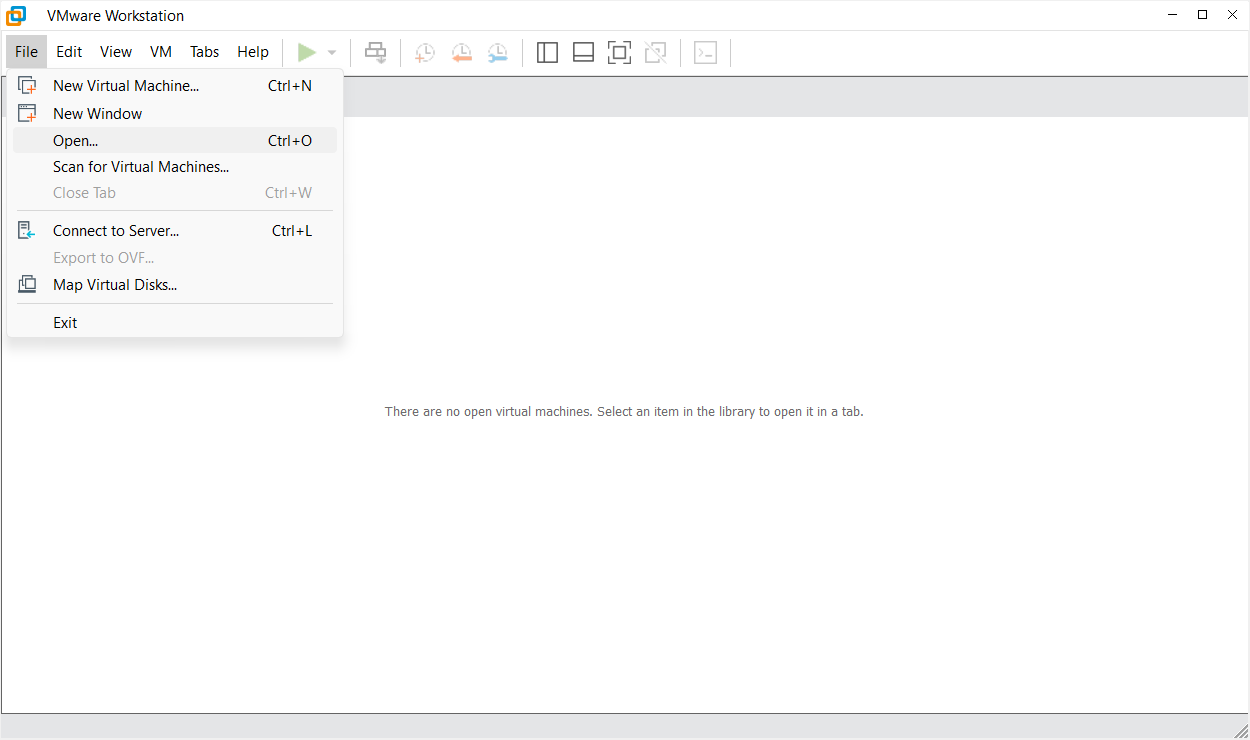
Figure 6.2-2 Open Image
Locate the extracted folder and select the file with the .vmx extension. As shown in Figure 2-3 below:
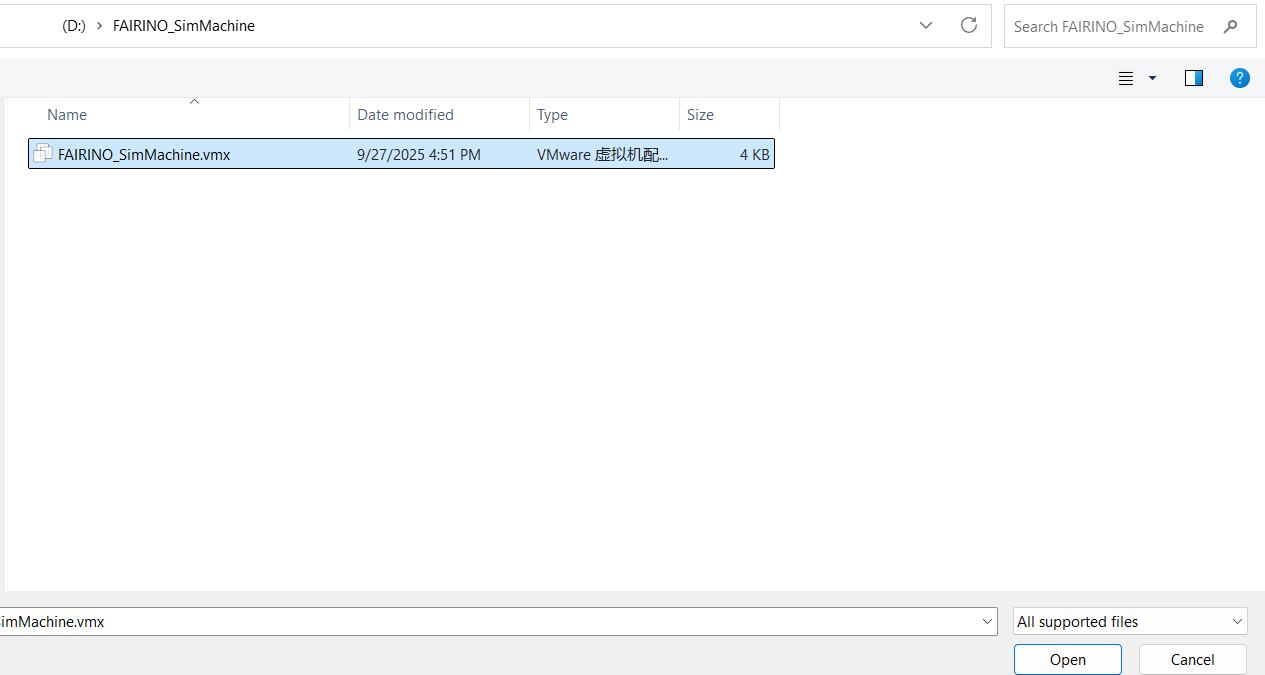
Figure 6.2-3 Select File
Click “Power on this virtual machine” to start the virtual machine. As shown in Figure 2-4 below:
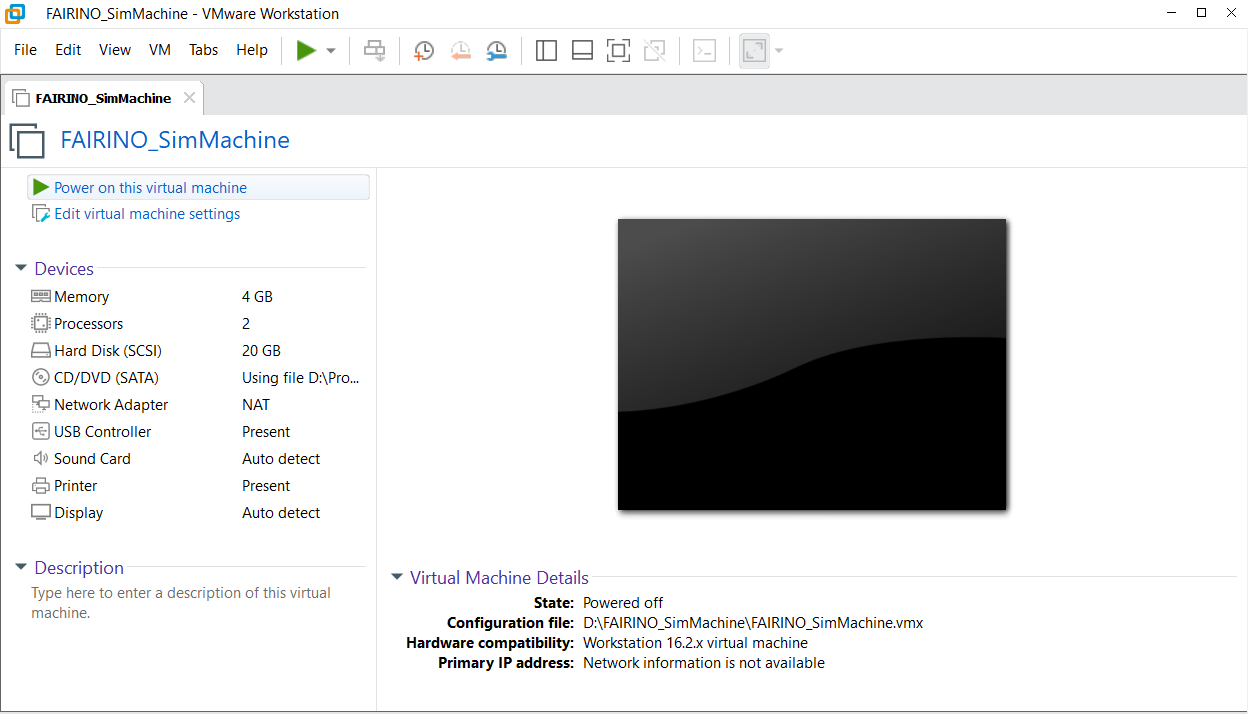
Figure 6.2-4 Start Virtual Machine
Find “fr_get_vm_net” in the extracted folder and double-click to open it. As shown in Figure 2-5 below. The output content is the virtual machine IP. As shown in Figure 2-6 below.
Note
If the acquisition fails, please go to the virtual machine and obtain it by executing the “ifconfig” command.
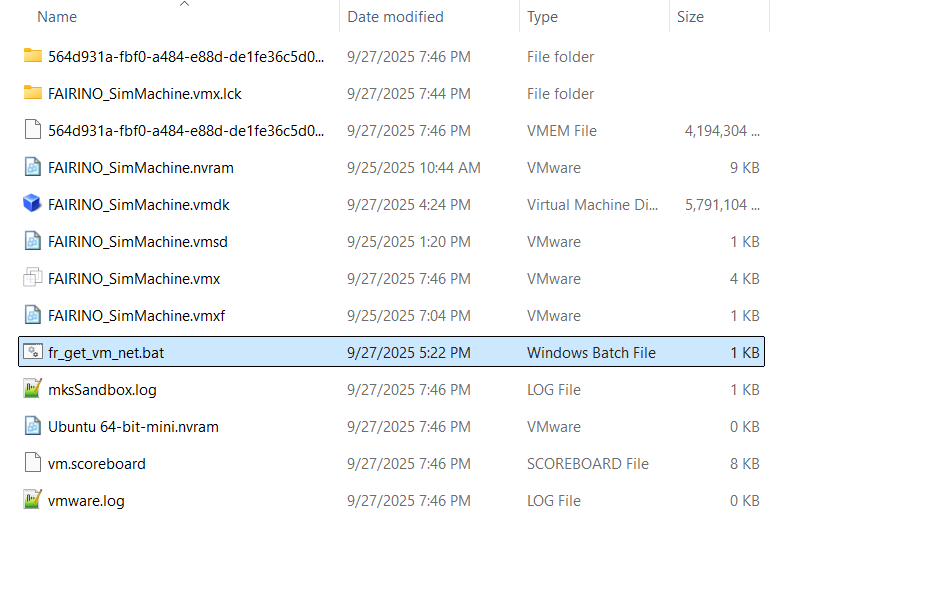
Figure 6.2-5 fr_get_vm_net.bat
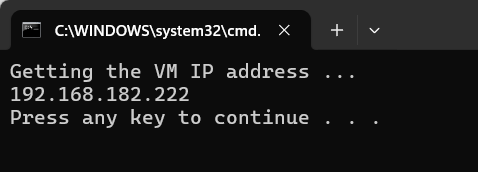
Figure 6.2-6 Virtual Machine IP
1.2.3. Accessing WebApp from Windows
After obtaining the virtual machine IP, directly access the virtual machine IP in the Windows browser to enter WebApp. For example, enter: 192.168.182.222, as shown in Figure 2-7:
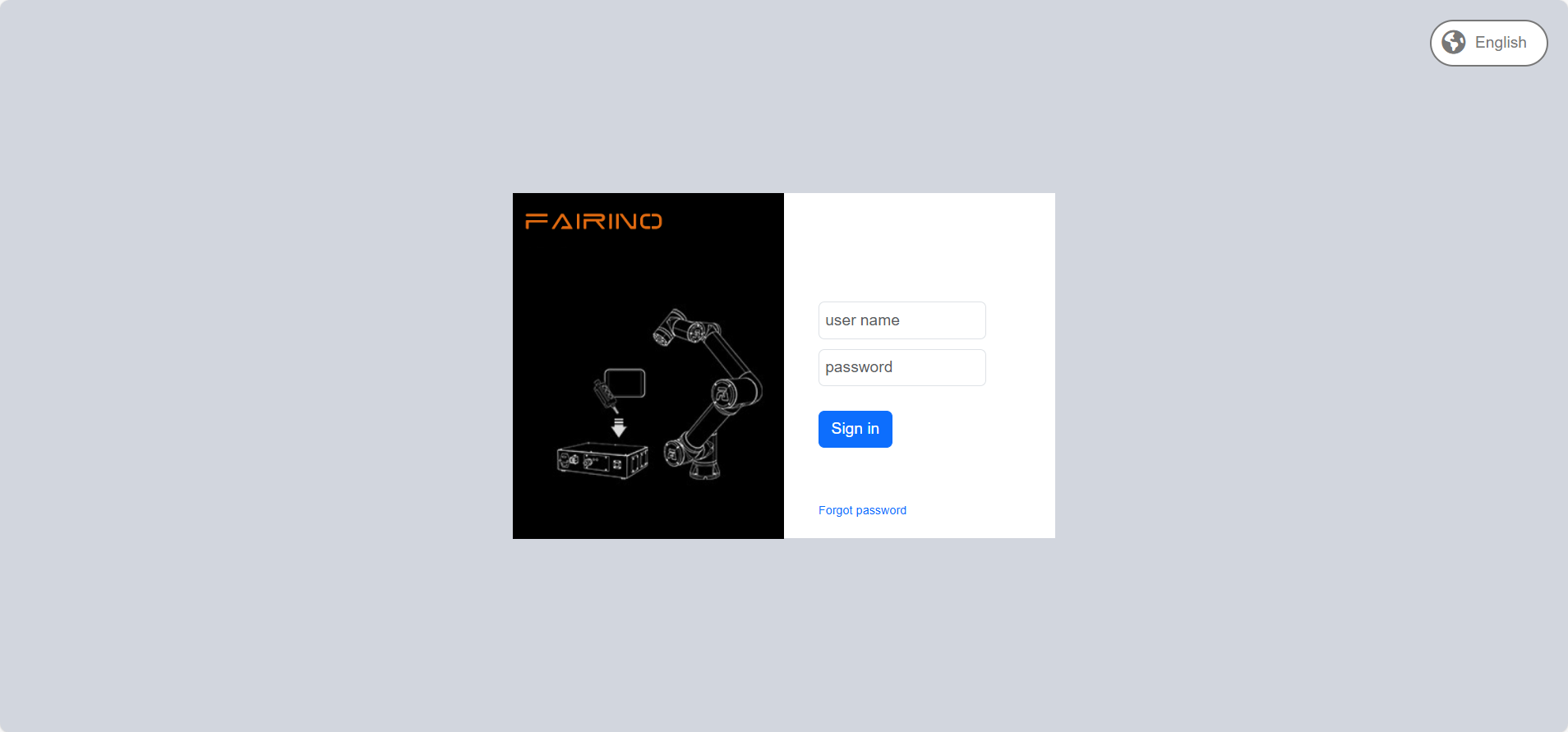
Figure 6.2-7 Access WebApp via Virtual Machine IP