3. Appendix
3.1. Appendix 1: Enabling Virtualization in the BIOS
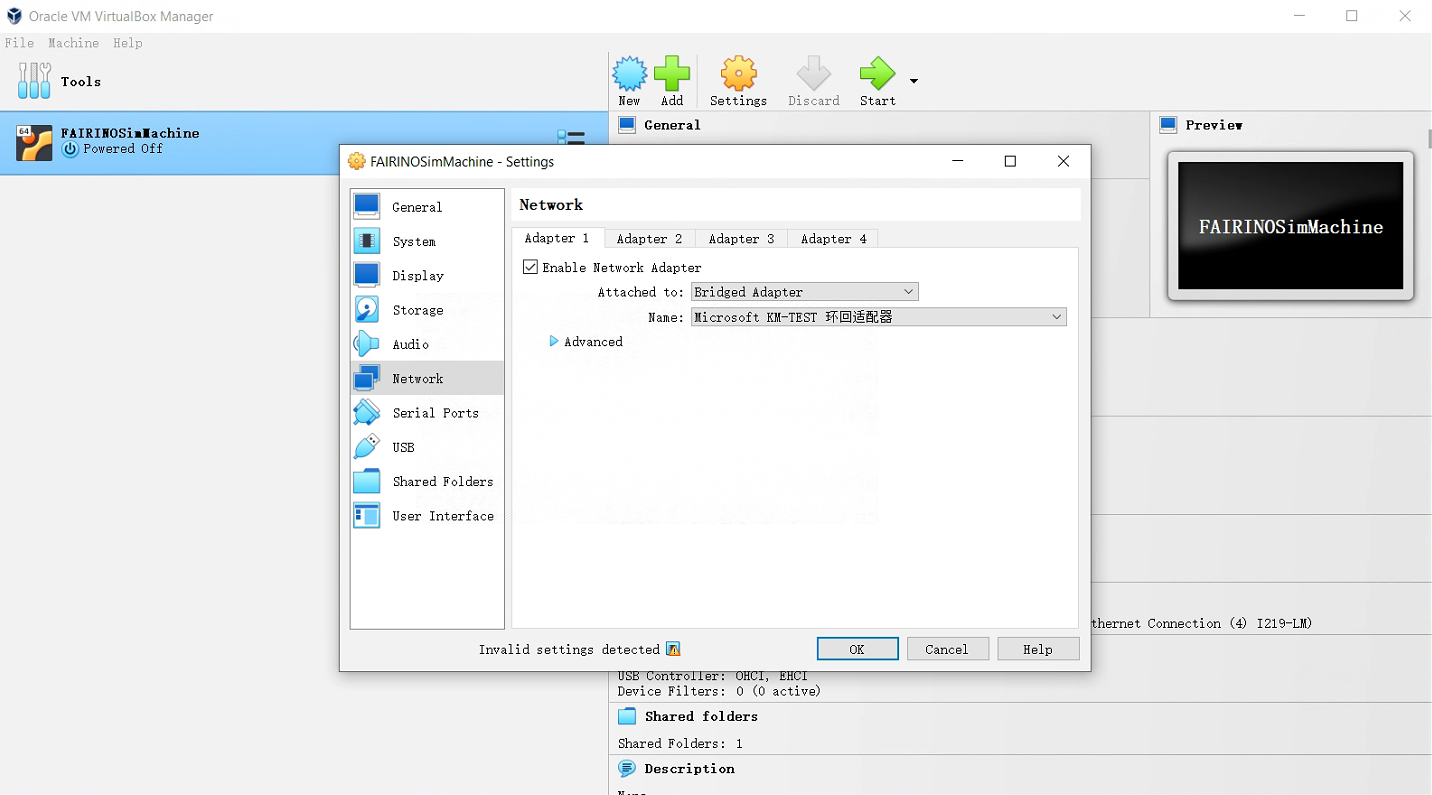
Different models of computers may have different processes to enable virtualization. Take Lenovo ThinkPad series Windows 10 as an example:
Open PC Settings and select Update and Security.
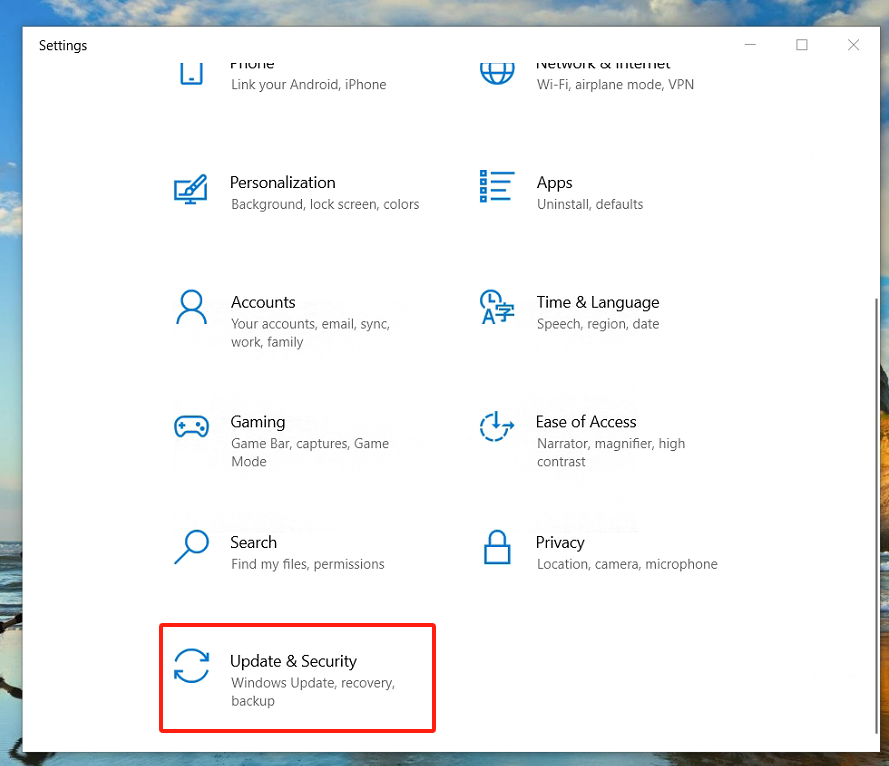
Select “Recover”.

Select “Restart Now”.
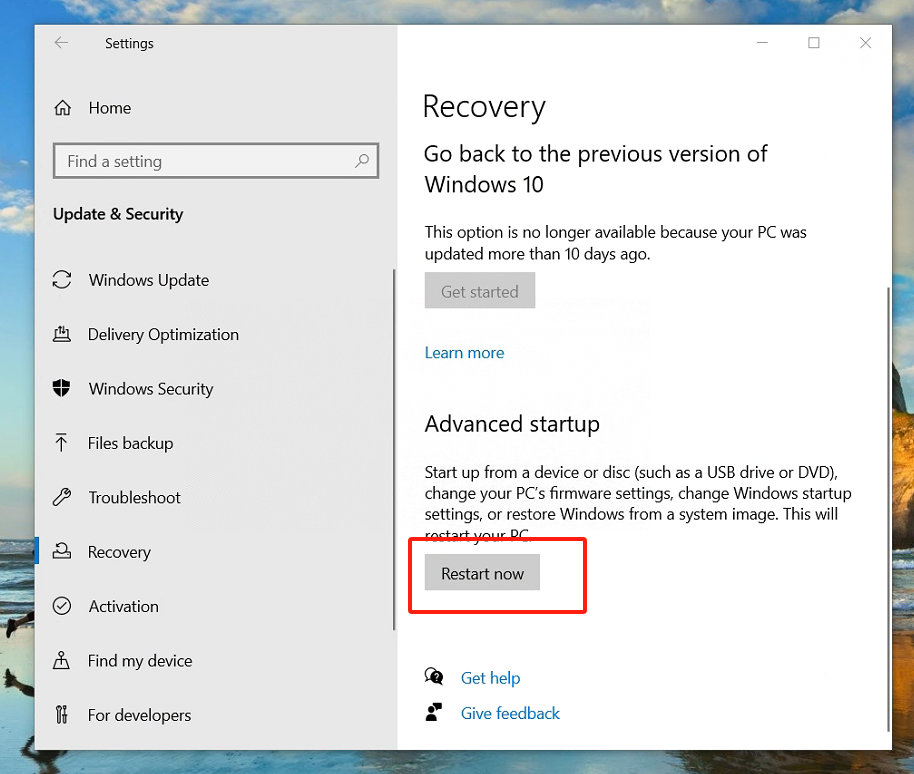
Select “Troubleshoot”.
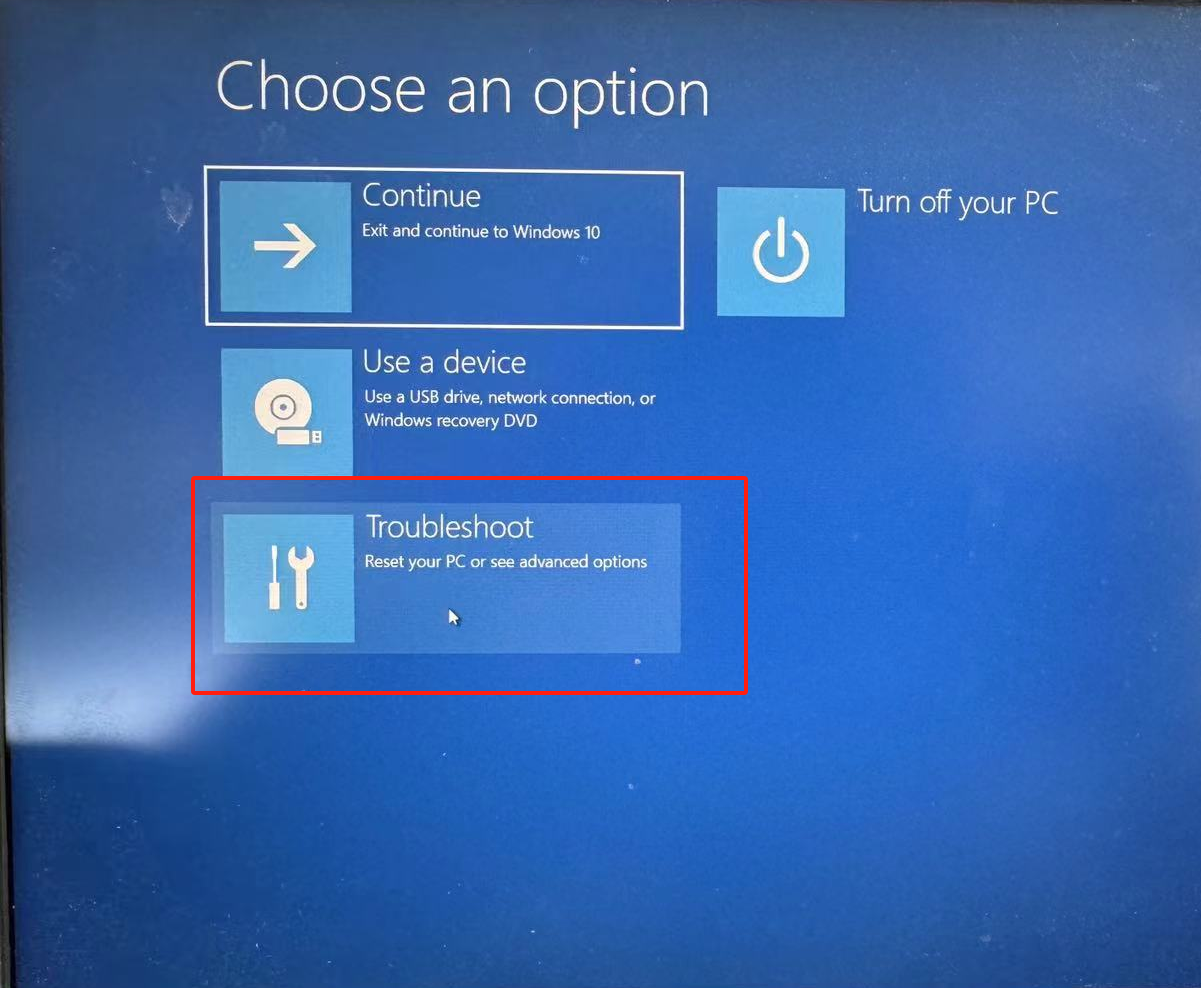
Select “Advanced Options”.
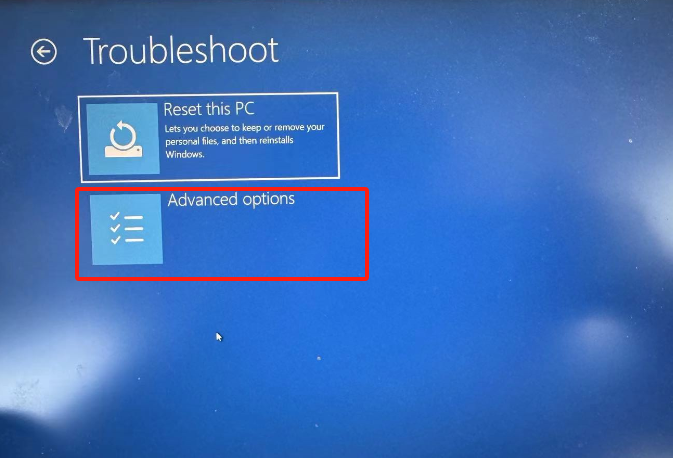
Select “UEFI Firmware Settings”.
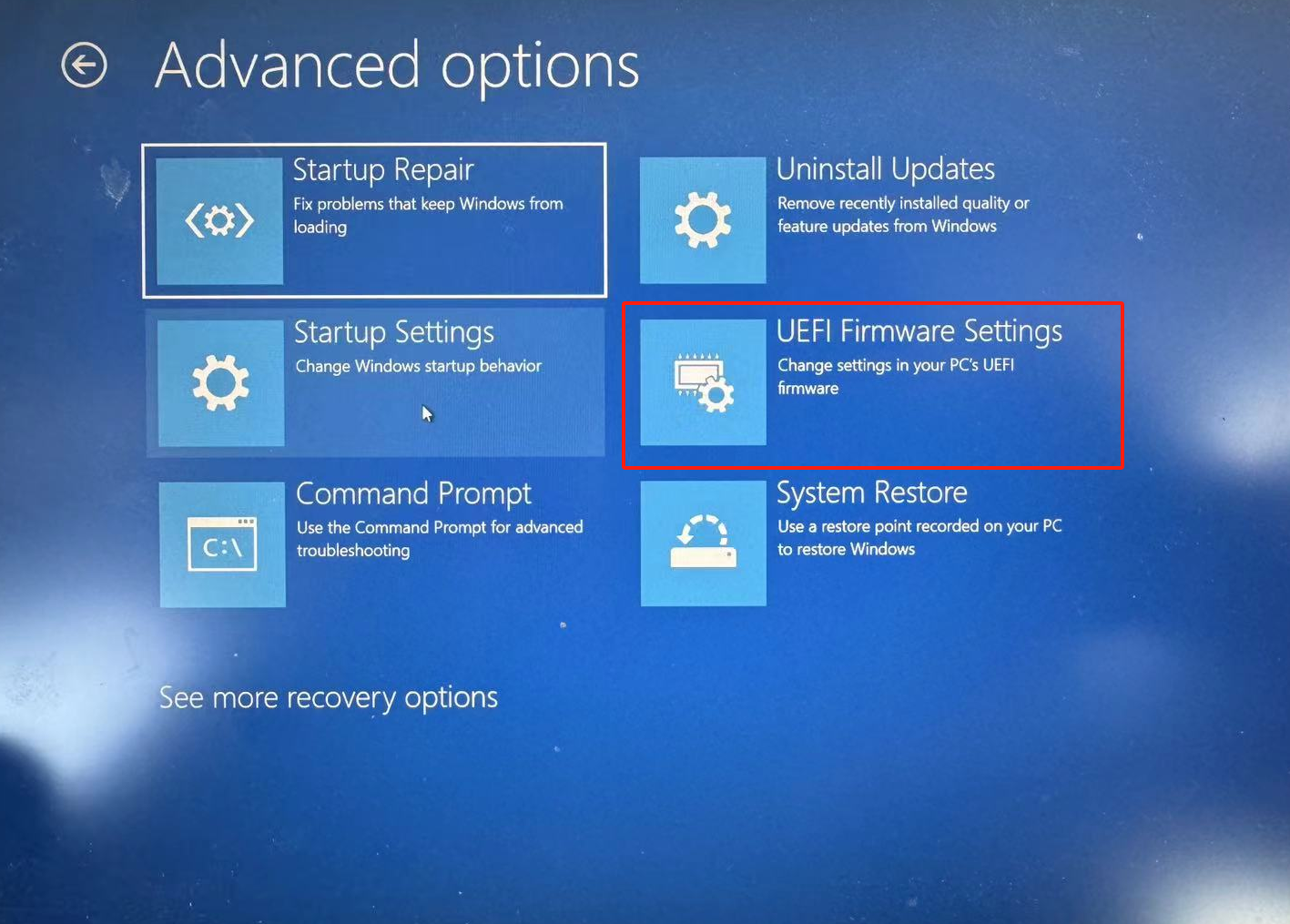
Select “Restart”.
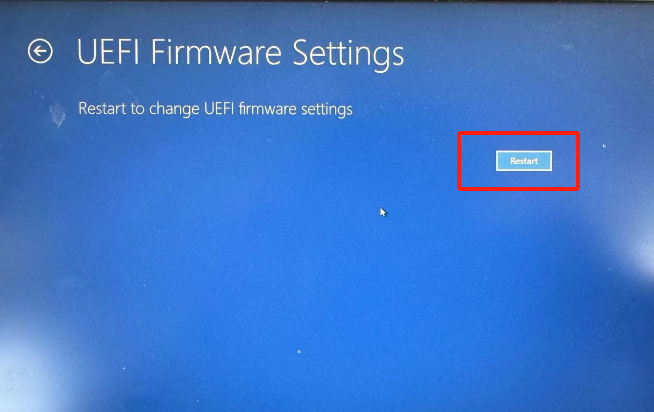
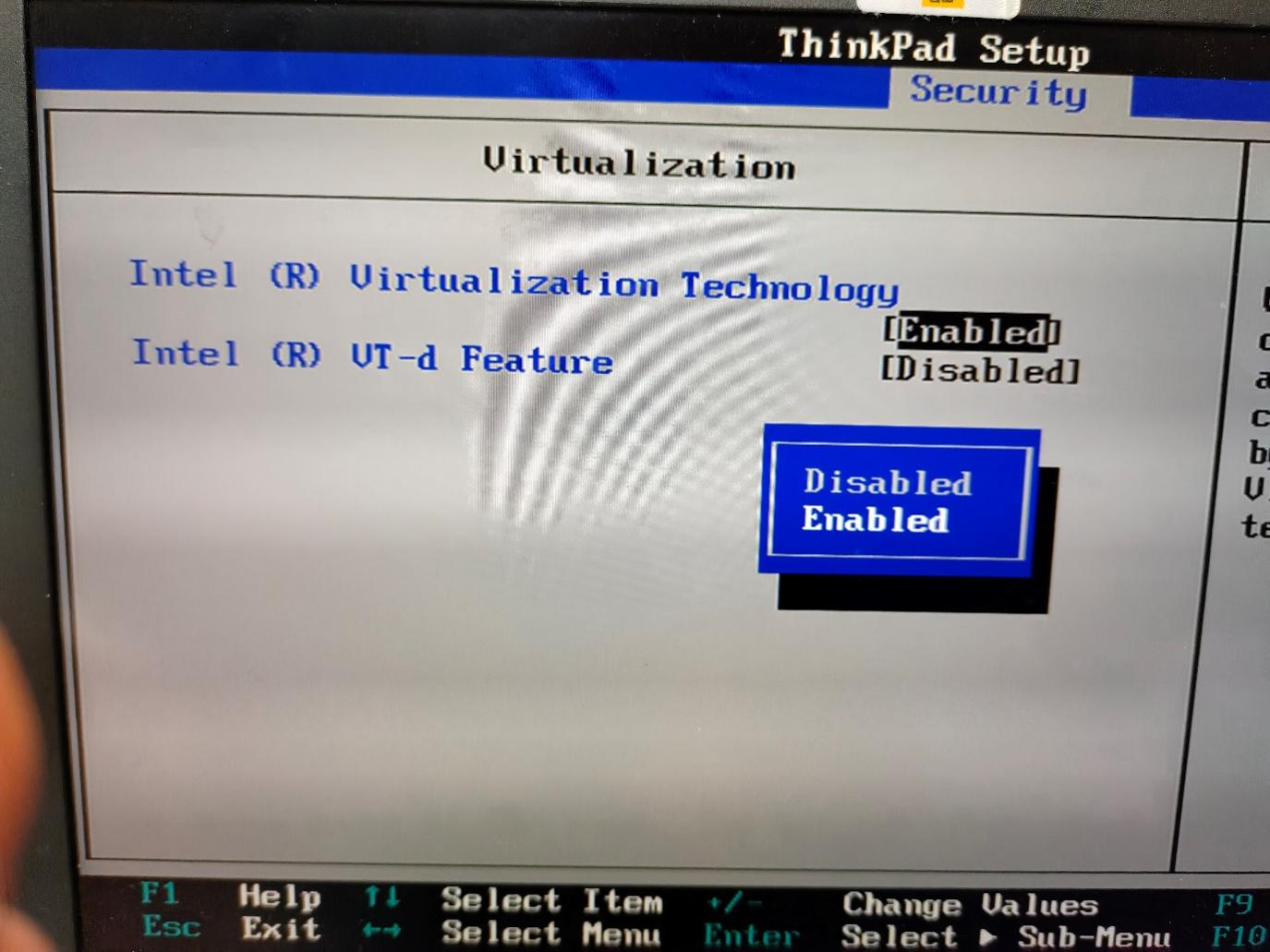
Select “Virtualization” under Security.
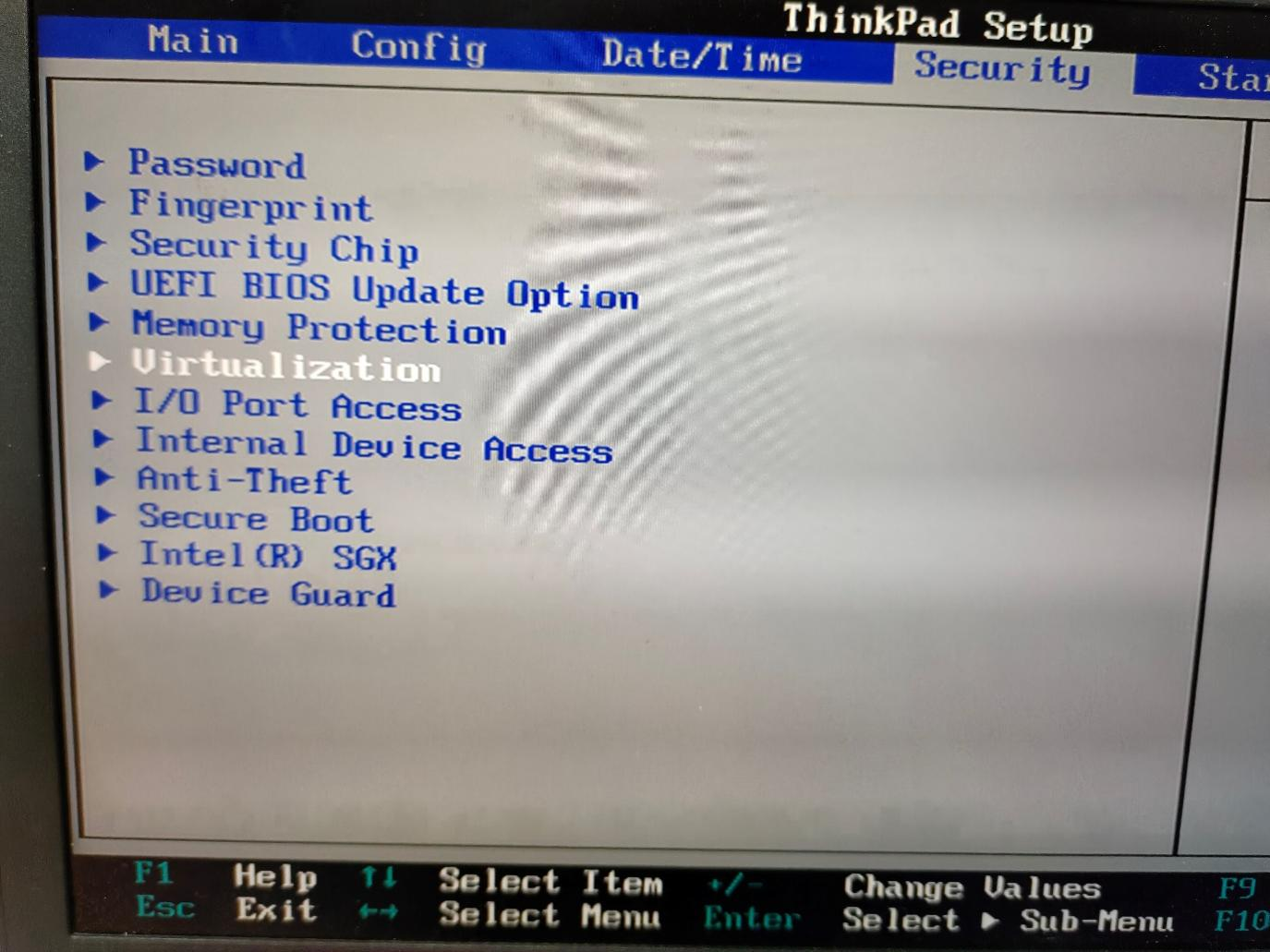
Select “Enabled” and press “Enter” to confirm.
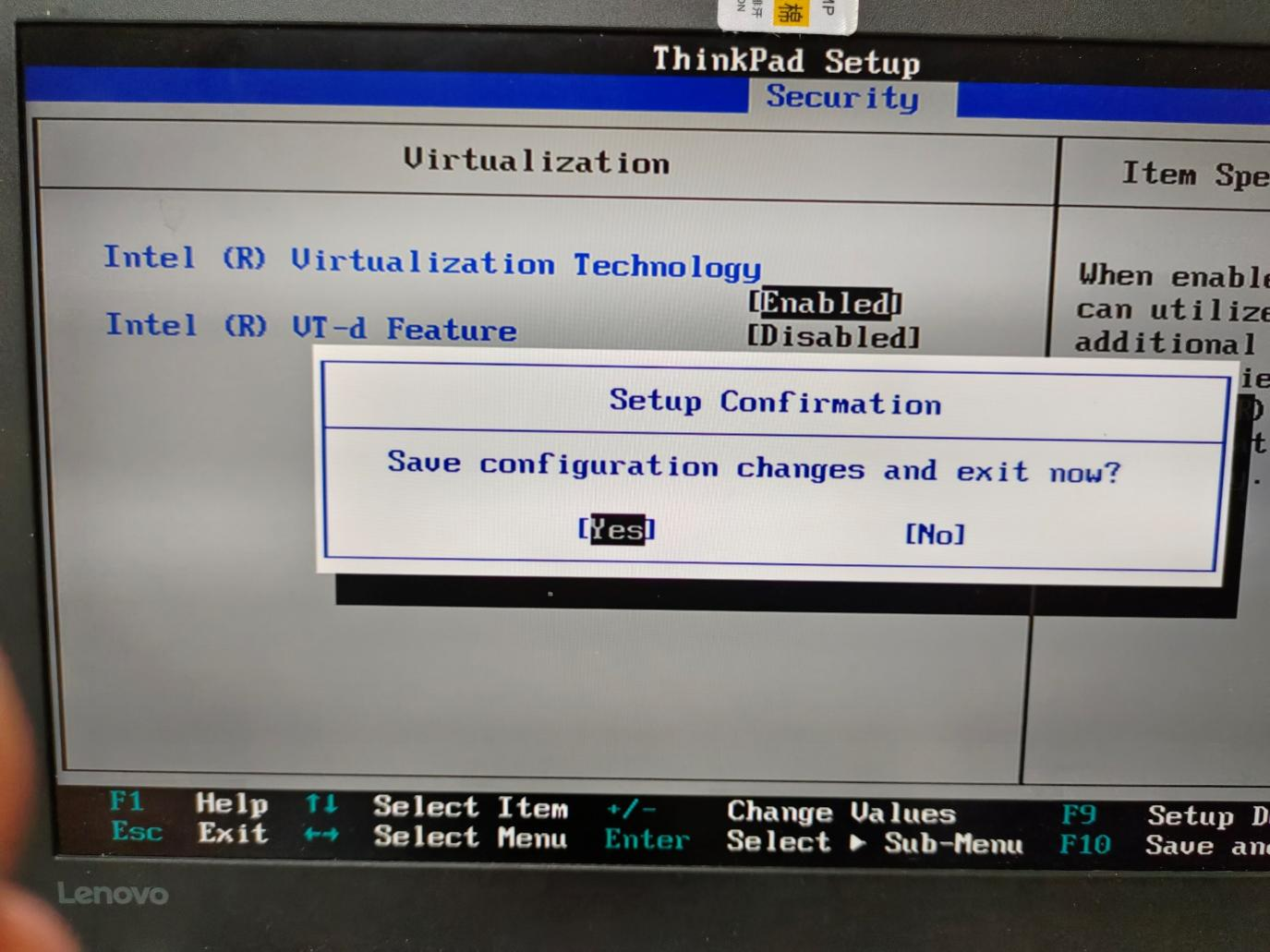
Press “F10”, select “Yes”, press “Enter” to save changes.
3.2. Appendix 2: Adding a Virtual NIC (Loopback Network Adapter)
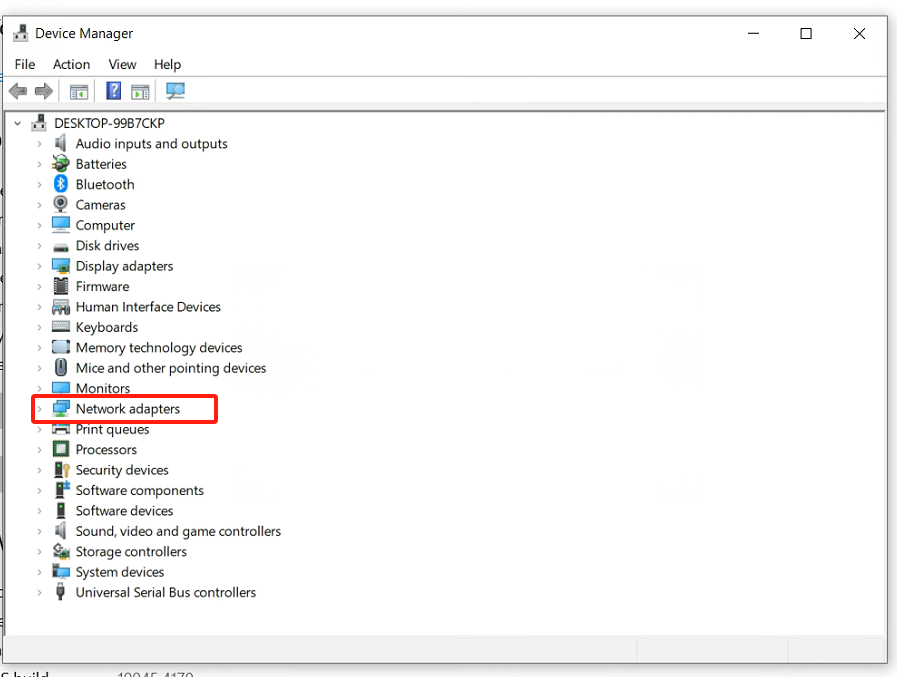
Open Device Manager, press “Windows Key - X”, select “Network adapters”.
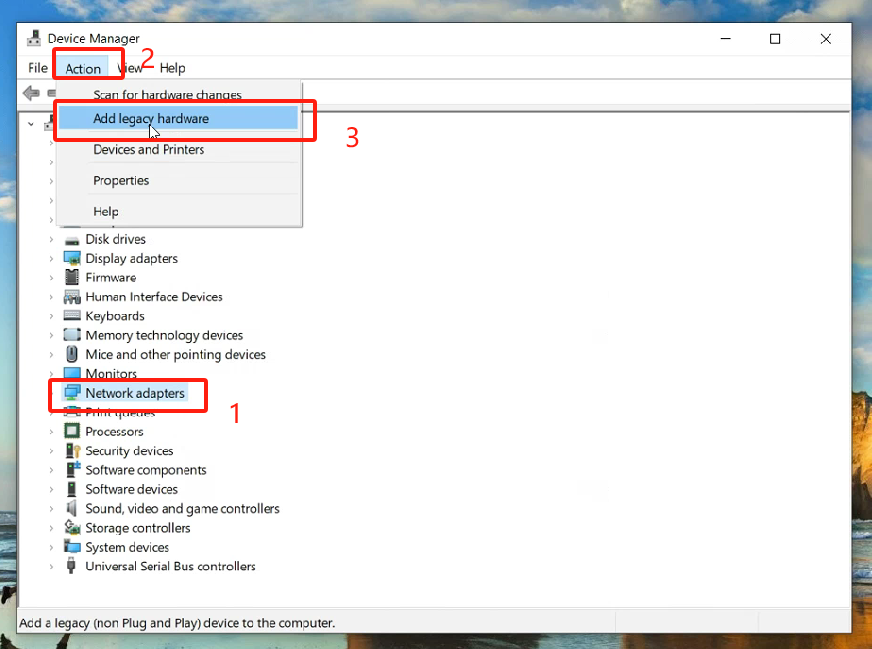
Add a network.
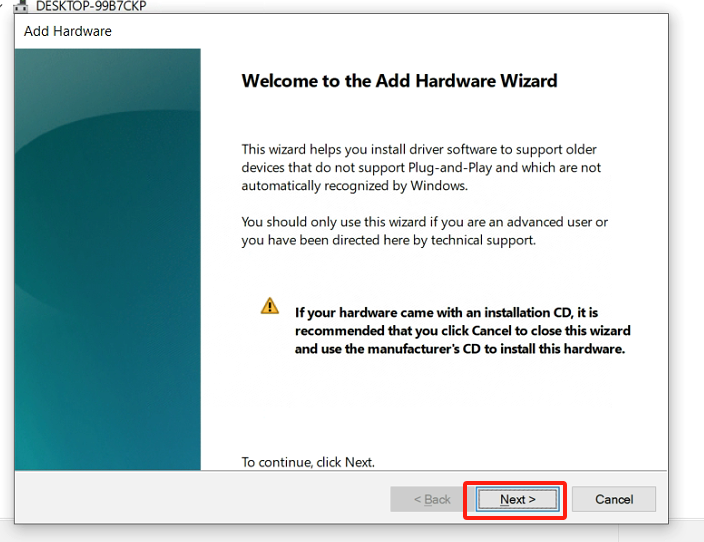
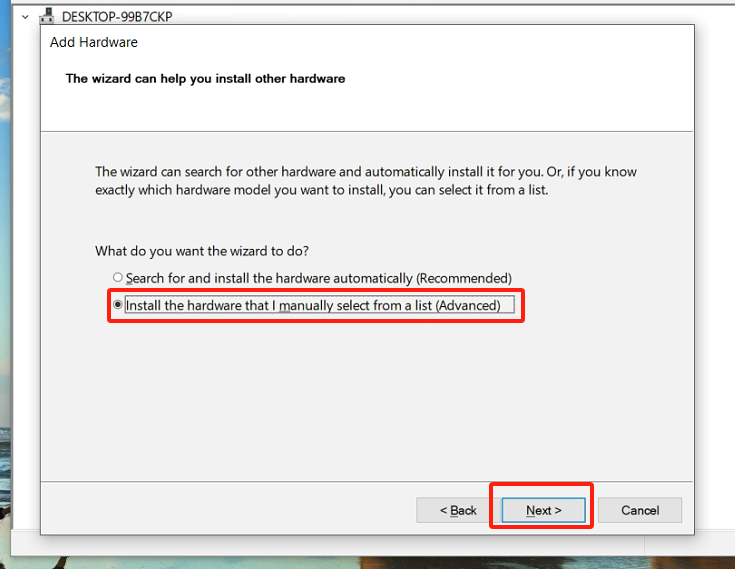
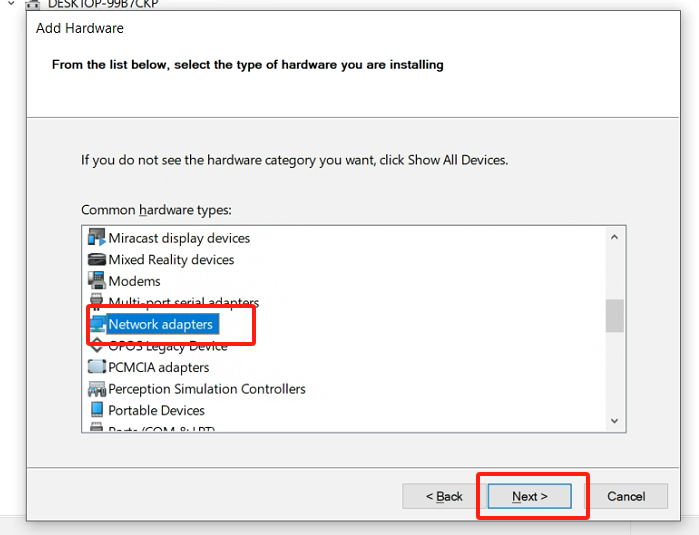
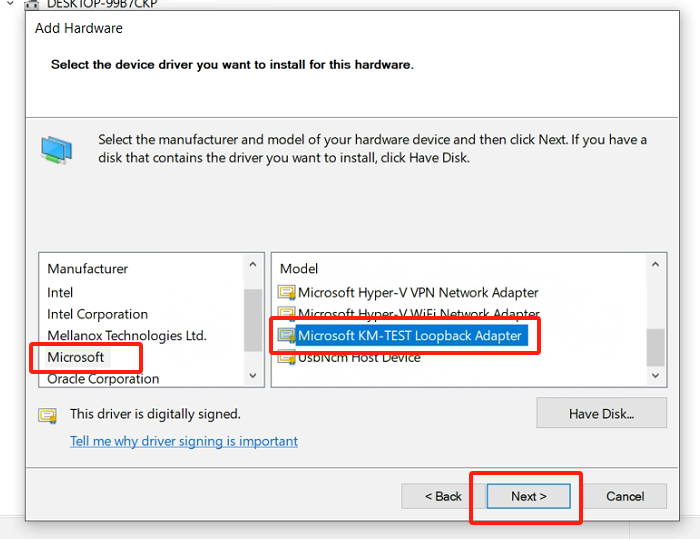
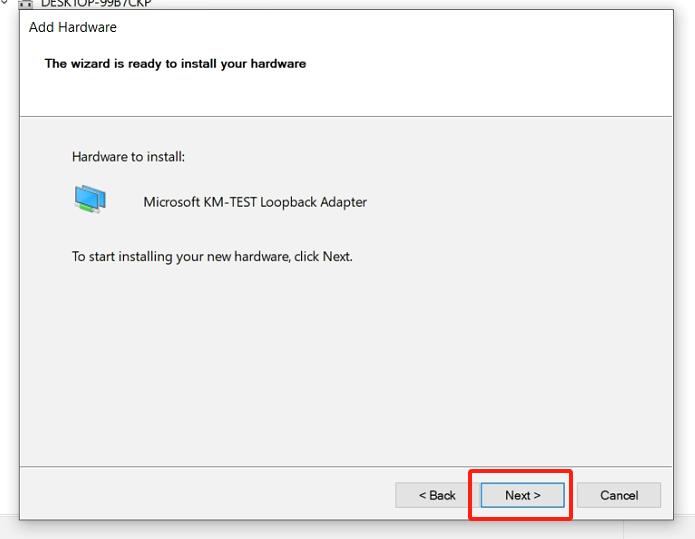
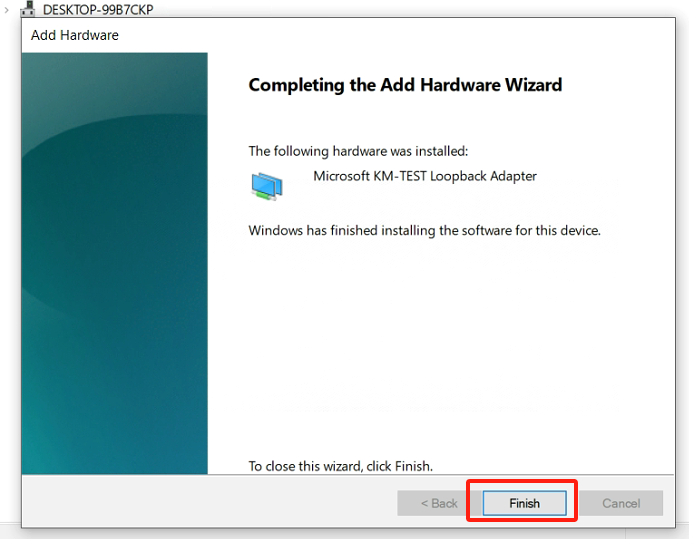
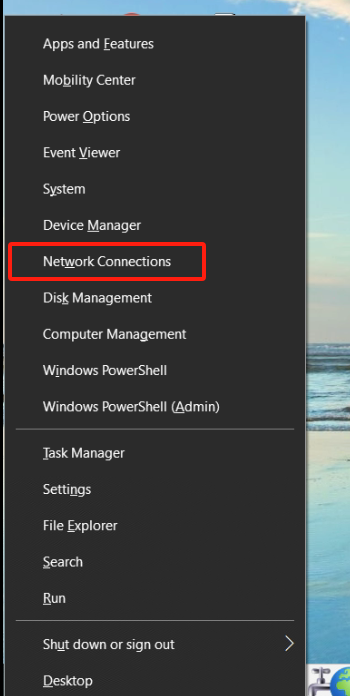
View the virtual network card, press the “Windows key - X” , select “Network Connection”.
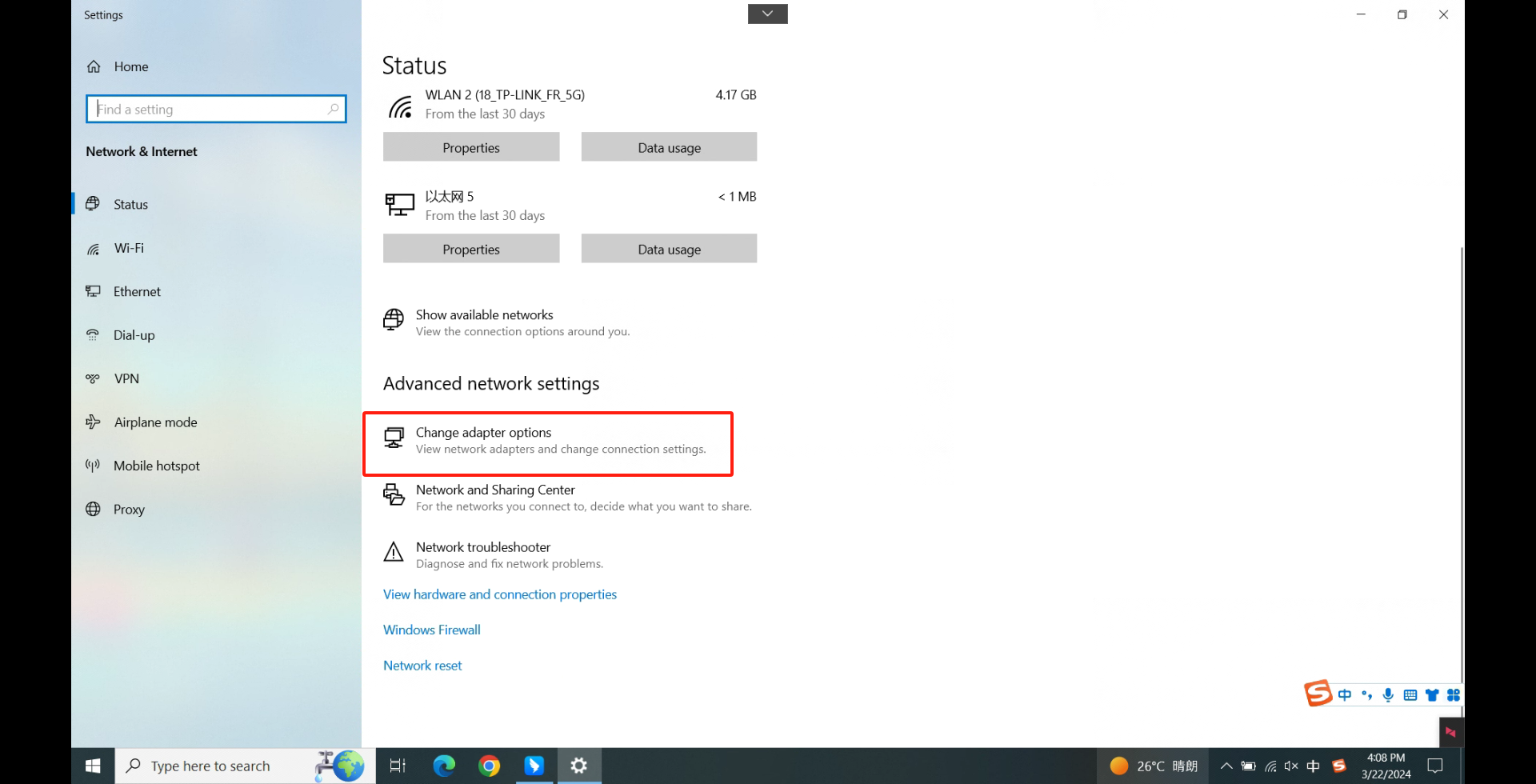
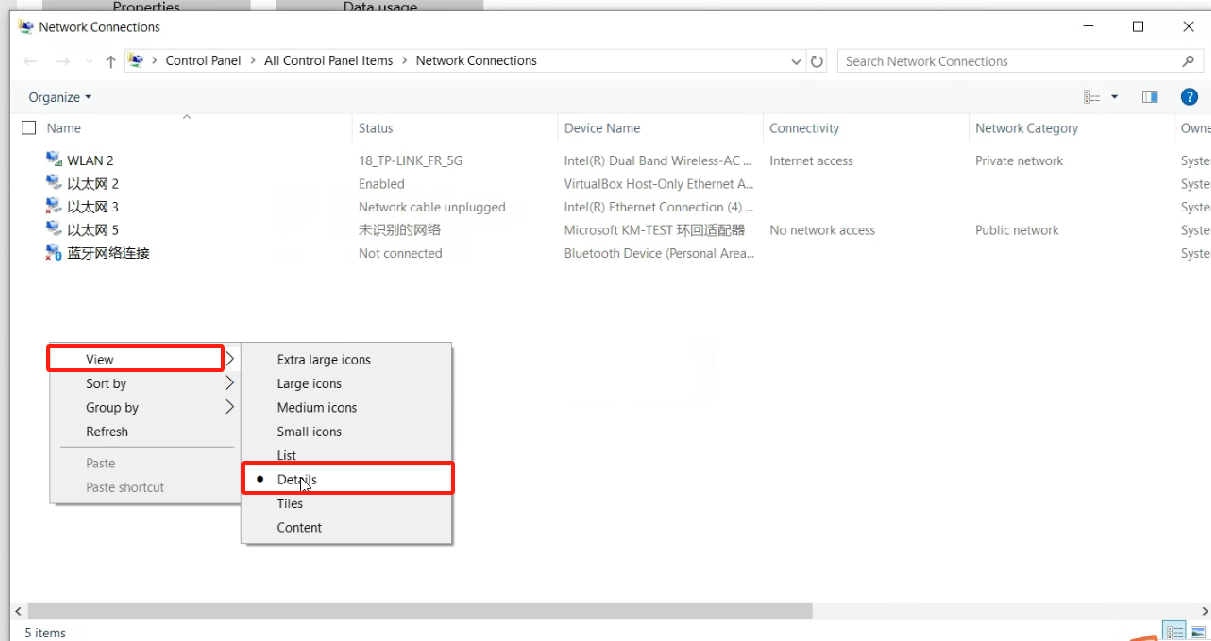
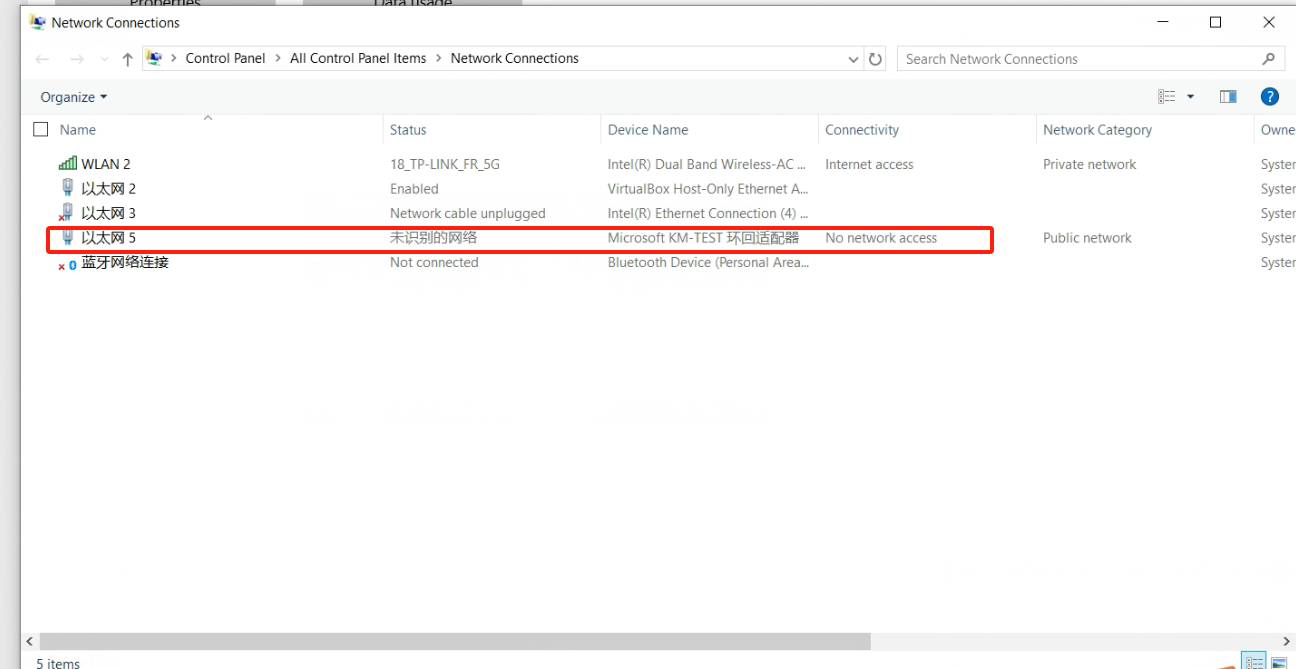
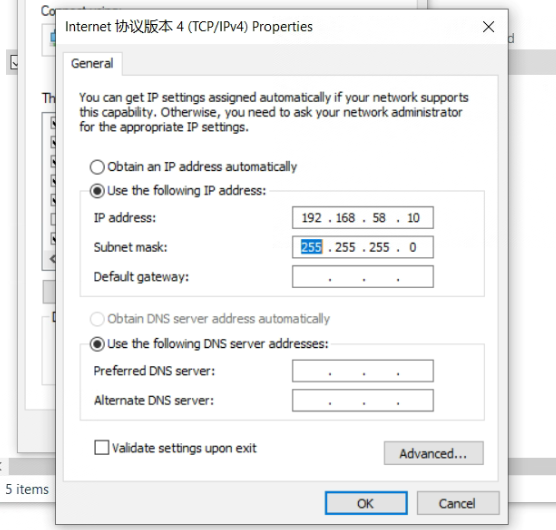
Configuring a Loopback Adapter Network.
IP address: 192.168.58.XXX (same network segment as 192.168.58.2) .
Subnet mask: 255.255.255.0.
Open the Virtualbox network configuration, select “Loopback Adapter Network” for the network card name, and start the virtual machine.
3.3. Appendix 3: Root Permissions
After Ubuntu is installed, the root user is not allowed to log in by default, and the password is empty. If you want to log in as the root user, you must first set a password for the root user.
Open the terminal, type sudo passwd root, press Enter, and then enter the password several times. A success message will be displayed once the password is set.
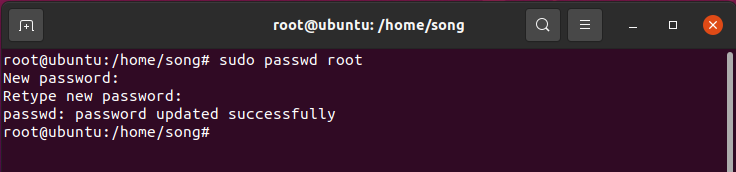
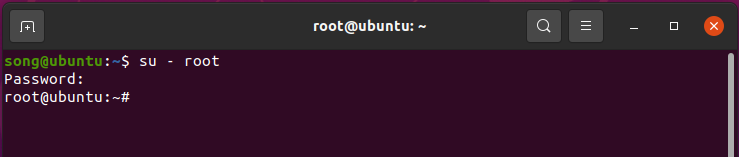
Continue in the terminal by entering the command su - root to switch users, and press Enter to input the password.
Warning
When entering the command, be sure to include the hyphen in “su -”. The option “-” signifies that the environment variables should be switched along with the user, and it is crucial not to omit it.
3.4. Appendix 4: Docker Basic Commands
Docker help command:
1docker --help
Start Docker :
1systemctl start docker
Stop Docker :
1systemctl stop docker
Restart Docker :
1systemctl restart docker
Set Docker to start automatically with the service :
1systemctl enable docker
Check the running status of Docker :
1systemctl status docker
2--If it's running, you'll see "active" in green
Docker container :
 1docker images: List the downloaded images.
 2docker rmi [image_id_or_name]: Remove a local image.
 3docker rmi -f [image_id_or_name]: Force remove an image.
 4docker build: Build an image.
 5docker search [image_id_or_name]: Search for an image by keyword in the Hub.
 6docker pull [image_id_or_name]: Download an image
 7docker images: List the downloaded images.
 8docker rmi [image_id_or_name]: Remove a local image.
 9docker rmi -f [image_id_or_name]: Force remove an image.
10docker build: Build an image.
Docker container :
 1docker ps: List running containers.
 2docker ps -a: List all containers, including those not running.
 3docker stop [container_id_or_name]: Stop a container.
 4docker kill [container_id]: Force stop a container.
 5docker start [container_id_or_name]: Start a stopped container.
 6docker inspect [container_id]: View all information about a container.
 7docker container logs [container_id]: View container logs.
 8docker top [container_id]: View processes inside the container.
 9docker exec -it [container_id] /bin/bash: Enter the container.
10exit: Exit the container.
11docker rm [container_id_or_name]: Remove a stopped container.
12docker rm -f [container_id]: Remove a running container.
13docker exec -it [container_ID] sh: Enter the container using the shell.