2. Virtual Machine - Docker
2.1. Linux Docker Image Deployment
2.1.1. Operating Environment
Virtual machine operating system: Ubuntu 18.04.6;
Virtual machine operating environment: RAM 4G, ROM 50G, 6-core CPU;
Operation permissions: Use super administrator root privileges. Setting method see Appendix 3;
Docker installation file: fr_docker.tar.gz;
FAIRINO SimMachine image: FAIRINOSimMachine.tar;
2.1.2. Install Docker
If the user has already installed and deployed Docker, skip this section and proceed to section 1.3 Image Deployment.
Download fr_docker.tar.gz and place it in the Ubuntu file path /opt/.
Extract fr_docker.tar.gz. Using /opt/ directory as an example:
1cd /opt/ && tar -zxvf fr_docker.tar.gz

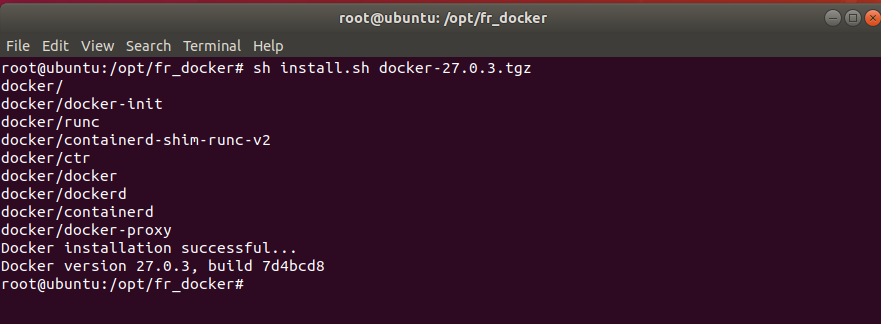
Execute the Docker installation script:
1sh install.sh docker-27.0.3.tgz
After the script finishes executing, if the version number appears, it indicates successful installation.
2.1.3. Image Configuration
2.1.3.1. Import Docker Image
Download the virtual machine image FAIRINOSimMachine.tar and extract it.
Check the Docker version to confirm installation.
1docker -v

Import the image
1docker load -i ./FAIRINOSimMachine.tar
The appearance of fairno_simmachine:latest indicates the import is complete.
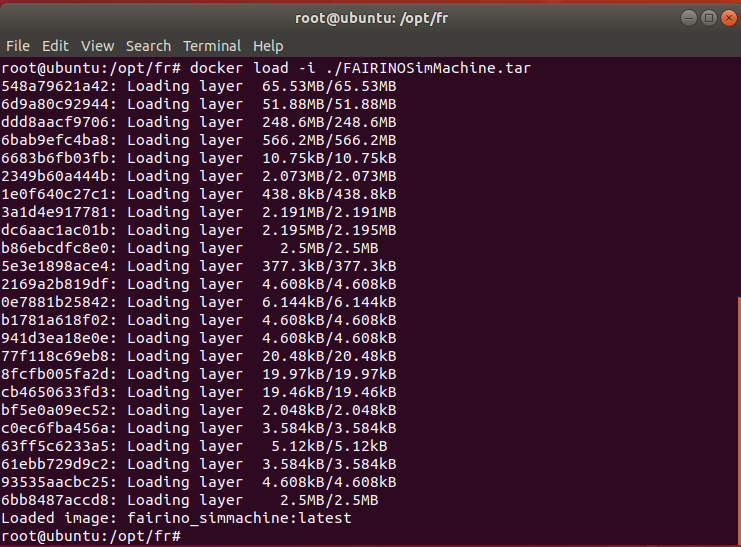
Execute docker images to check if the import was successful.
2.1.3.2. Create Custom Bridge Network
Execute the following command to create a bridge network named fairino-net with subnet 192.168.58.0/24.
1docker network create --driver bridge --subnet 192.168.58.0/24 --gateway 192.168.58.1 fairino-net
View the network
1docker network ls
The presence of the fairino-net network indicates successful creation.

2.1.3.3. First-time Docker Container Startup
Create and start the container
Start the container using the fairino-net network and the fairino_simmachine image.
1docker run -d -P --name fairino-container --privileged -u root --net fairino-net fairino_simmachine

1docker ps
Check if the container started successfully. The appearance of fairino-container indicates successful startup.

2.2. Web Operation of Virtual Robot
2.2.1. Container Normal Startup
This section applies to non-first-time container startups, such as when the container is not running in the background due to computer restart or Docker shutdown.
Start Docker:
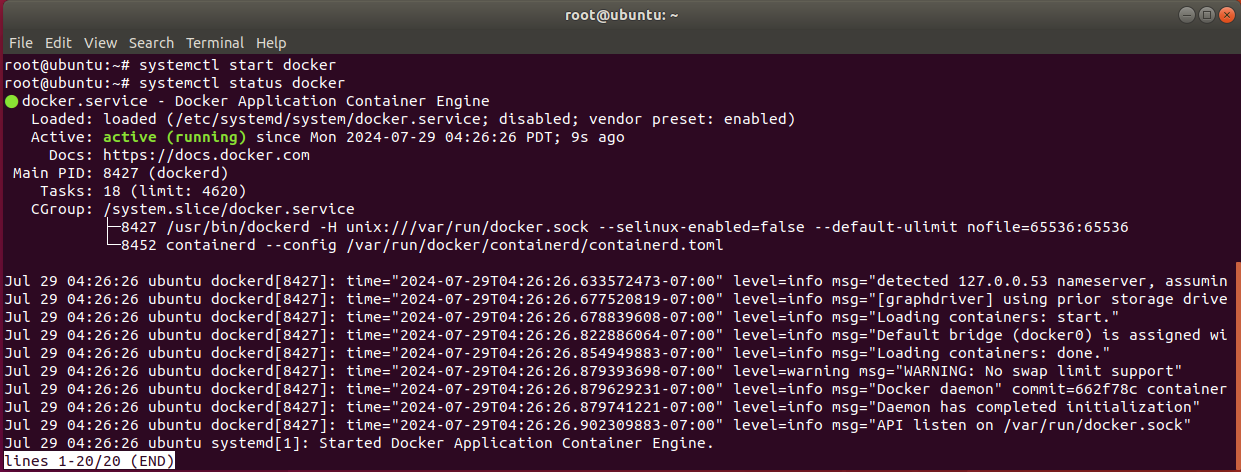
1systemctl start docker
Check Docker status:
1systemctl status docker
Green active(running) indicates successful startup.
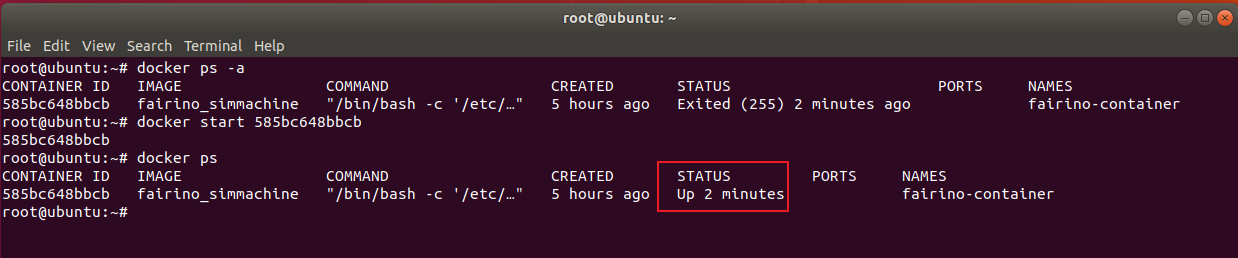
Execute docker ps -a to view the container ID.

Execute docker start [Container ID].

After successful execution, execute docker ps again to confirm the container is running.
2.2.2. Operating the Virtual Robot
Confirm the Docker container is running.
1docker ps
The appearance of fairino-container indicates it is running.

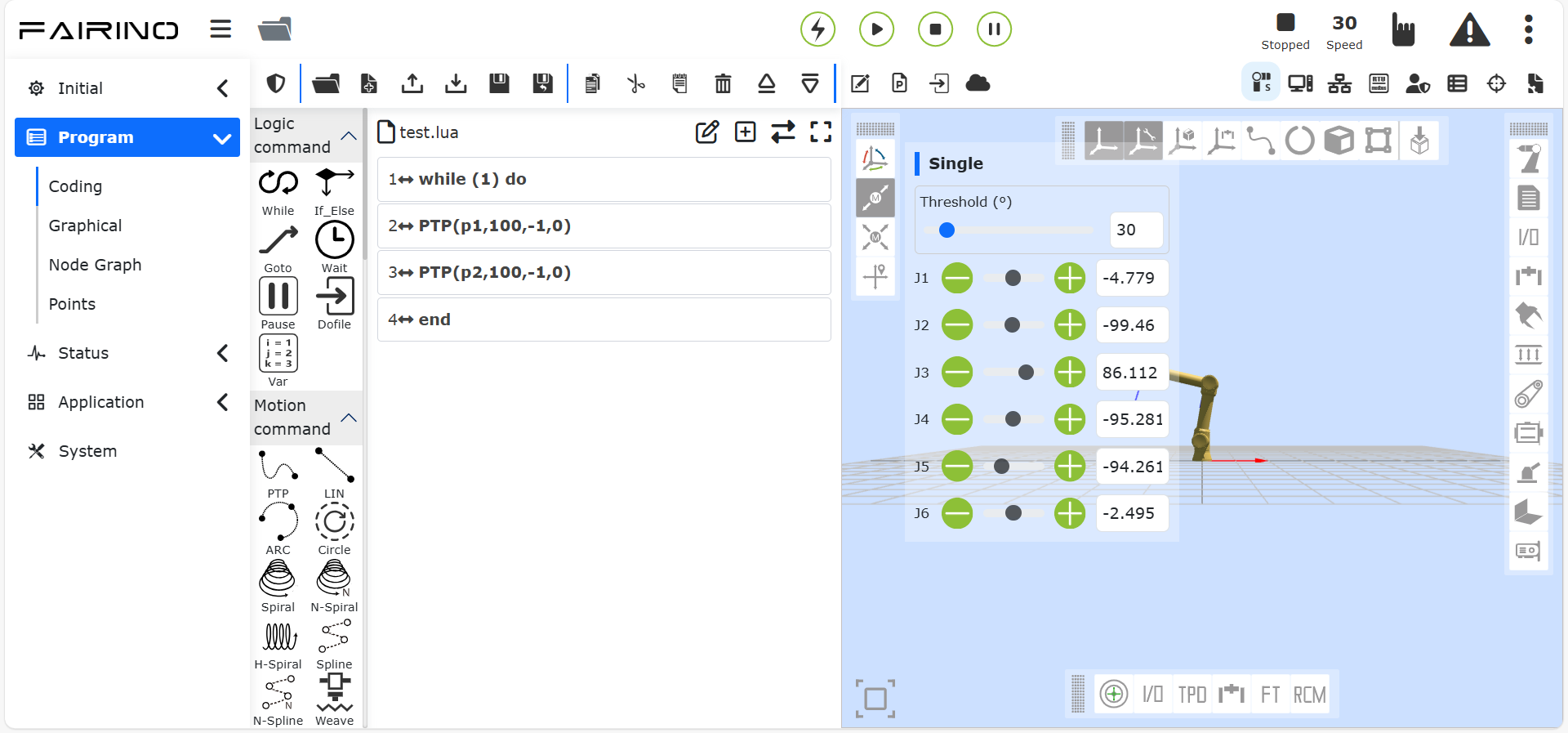
Open a browser, enter the default IP: 192.168.58.2, to access the web interface and operate the virtual robot.
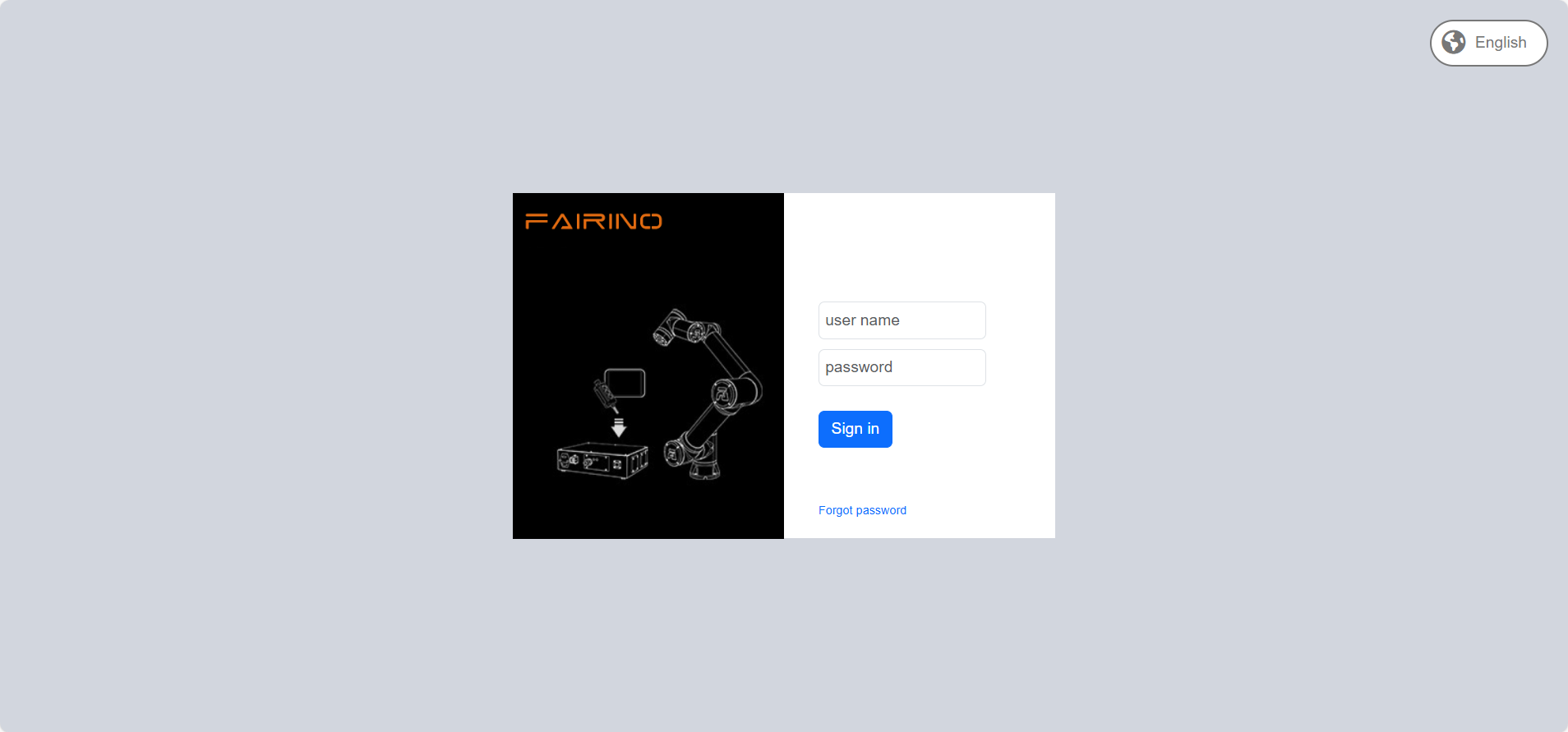
Log in with the admin account, password: 123.
2.2.3. User IP Address Modification
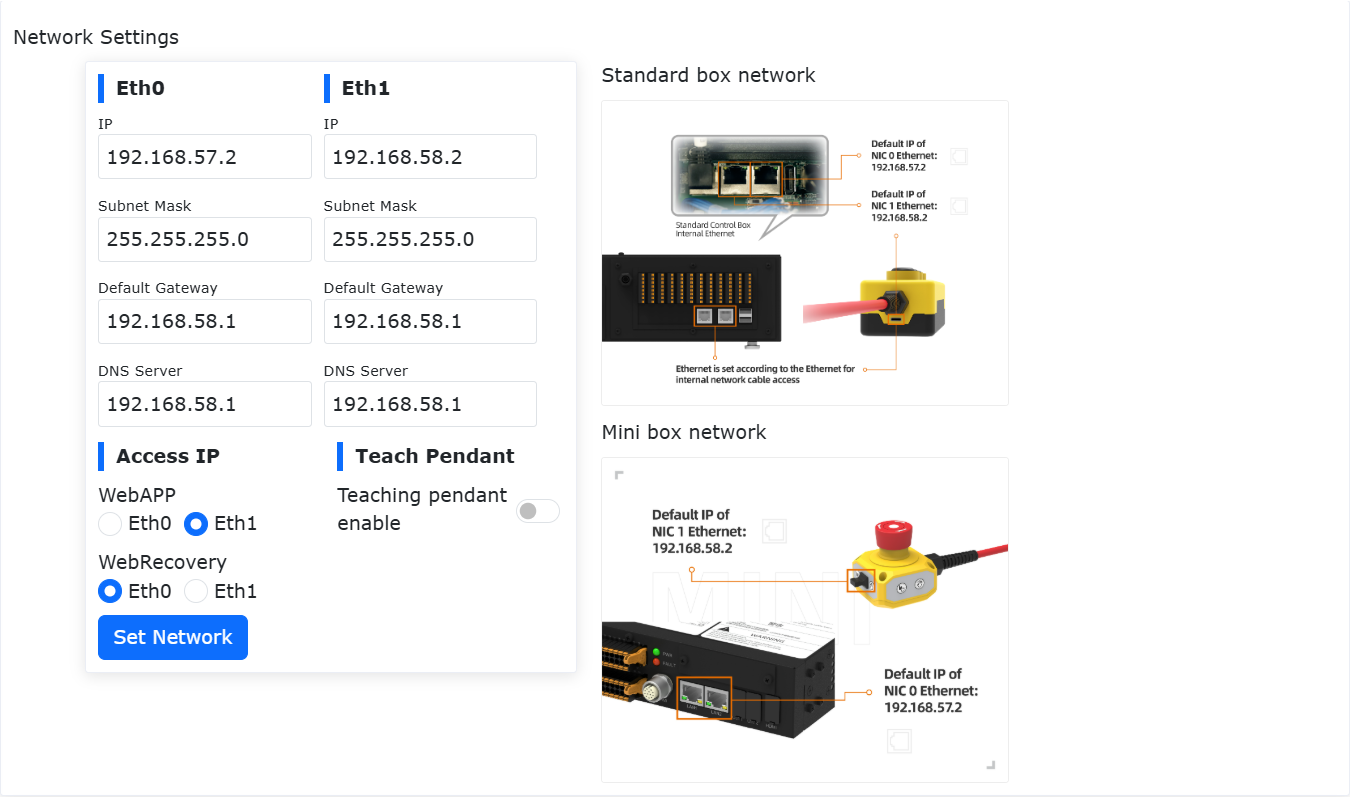
Open a browser, enter the default IP: 192.168.58.2, to open the web page;
Log in with the admin account, password: 123;
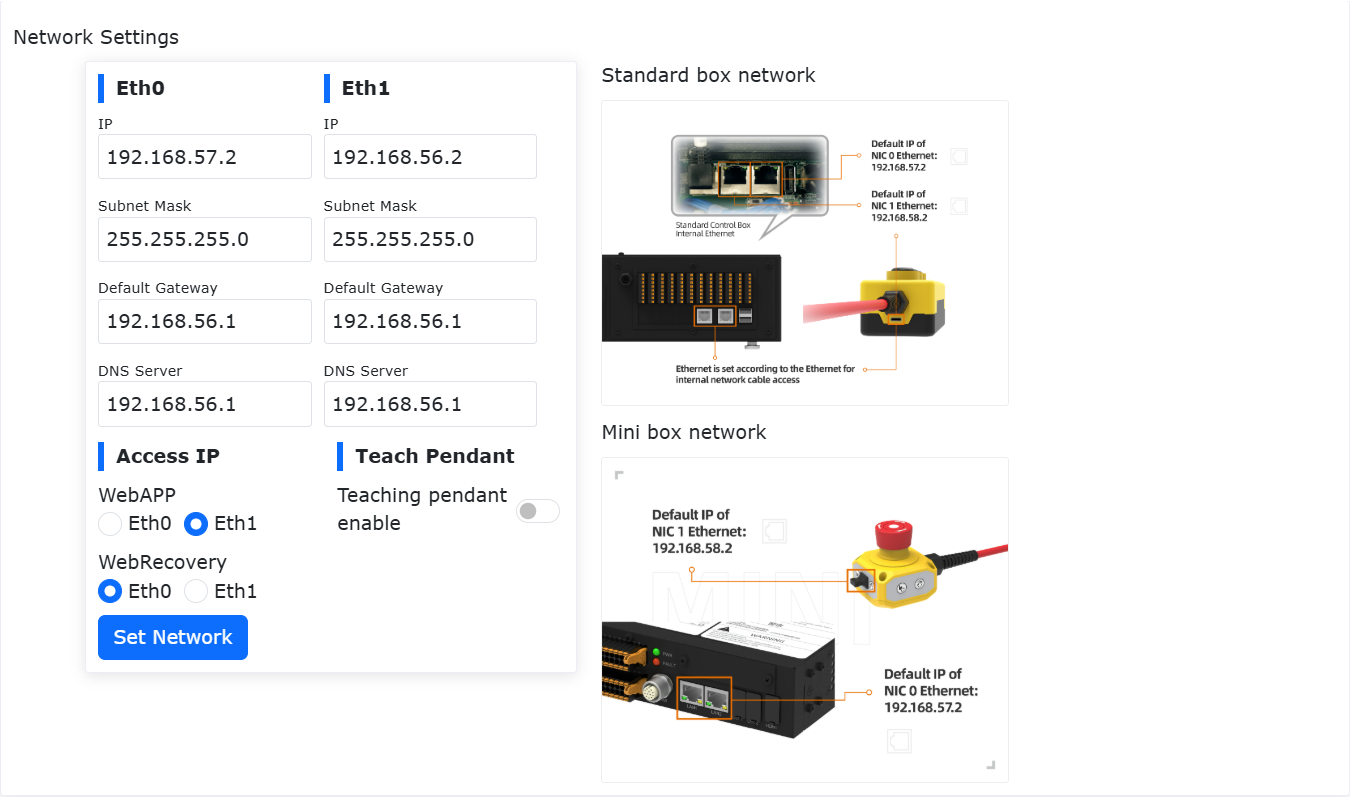
Navigate to “System Settings” → “General Settings” → “Network Settings”, modify the IP to the target IP address, subnet mask, and gateway. Click “Set Network”;
Open the terminal, stop the container;
View the container ID:
1docker ps -a

Stop the container:
1docker stop [Container ID]

Reconfigure the container network;
Delete the original network:
1docker network rm fairino-net
Create a new network:
1docker network create --driver bridge --subnet [Target IP/Subnet Mask] --gateway [Gateway IP] fairino-net
Using 192.168.56.0/24 as an example: docker network create –driver bridge –subnet 192.168.56.0/24 –gateway 192.168.56.1 fairino-net

Reconnect the container to the newly created network;
1docker network connect fairino-net [Container ID]

Restart the container;
1docker start [Container ID]
Now open the browser, enter the modified IP address, to access the web interface and operate the virtual robot.
2.3. Virtual Machine Version Upgrade/Downgrade
2.3.1. Overview
This manual details the standard procedure for performing software upgrades and downgrades when using the FAIRINO SimMachine Docker virtual machine, and systematically outlines key considerations during the version change process.
2.3.2. Upgrade/Downgrade Preparation and Considerations
2.3.2.1. Operation Preparation
A deployed and normally functioning FAIRINO SimMachine Docker virtual machine. Deployment tutorial see “User Manual - Linux Docker Image Deployment”;
Software upgrade package for the Docker virtual machine version. Download location see “Data Download - FAIRINO SimMachine Docker”. After extraction, contents include the latest version docker image FAIRINOSimMachine.tar and the software upgrade package software.tar.gz.
2.3.2.2. Considerations
Data Backup: It is recommended to perform a backup before upgrading, method see “Data Backup” chapter, to avoid data loss due to upgrade anomalies.
Version Restrictions:
Table 2.3-1 Upgrade/Downgrade Version Restrictions
Operation Type |
Condition/Restriction |
Step Description |
Version Upgrade |
Current Version >= 3.7.8 |
Can upgrade directly |
Version Upgrade |
Current Version < 3.7.8 |
Must first upgrade to version 3.7.5 or use the compatibility solution |
Version Downgrade |
Current AND Target Version >= 3.7.8 |
Can downgrade directly |
Version Downgrade |
Current OR Target Version < 3.7.8 |
Use the compatibility solution |
Compatibility Solution |
Applicable for both upgrade/downgrade anomalies |
See “Compatibility Solution” chapter for detailed steps |