17. Appendix
17.1. Source Code Download
Find the “Downloads” section in the FAIRINO documentation (https://fairino-doc-en.readthedocs.io/latest/), click the “Java SDK” button, and then click “FAIRINO Java SDK” on the right-hand page. Wait for the browser to complete the download.
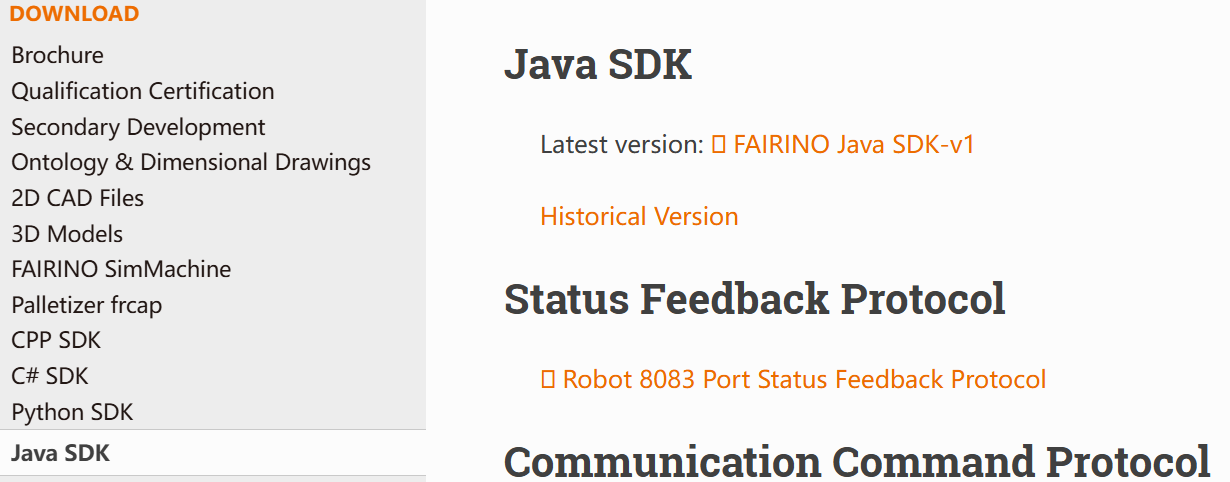
Figure 16.1‑1 Java SDK Source Code Download
Extract the compressed package. The file directory is as shown in the figure, which includes:
fairino_Java_SDK_maven: Source code (.java) and library files (.jar) compiled in a Windows system environment.
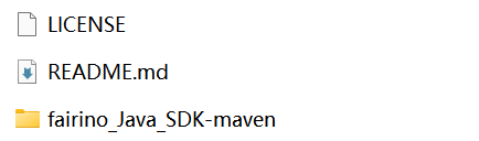
Figure 16.1‑2 Java SDK File Directory
Enter the fairino_Java_SDK_maven folder, which contains the following directories:
lib: Dependency JAR files used in the source code;
src: Java SDK source code files;
target: Library files (.jar) generated from the Java SDK source code;
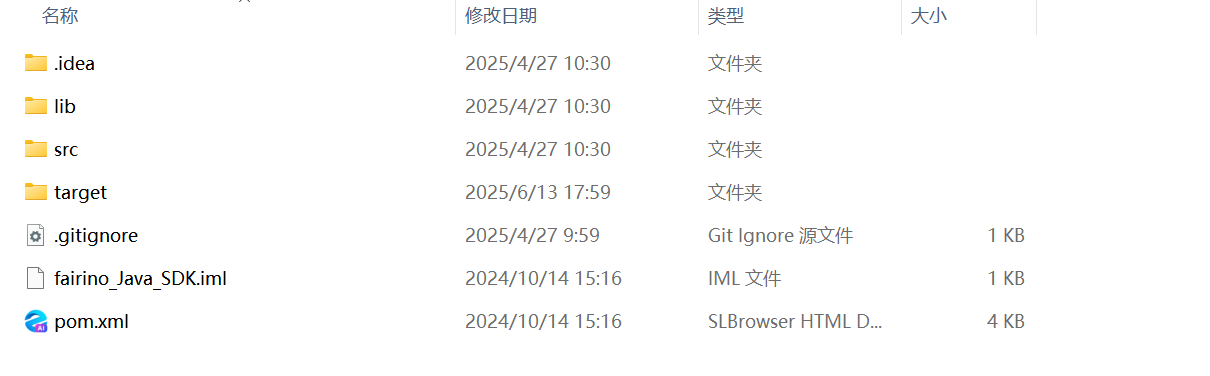
Figure 16.1‑3 Java SDK Source Code and Library File Directory
17.2. Windows Platform Source Code Compilation
① Install and configure the build tool—Maven
Maven download and installation website: Welcome to Apache Maven – Maven
After installation and configuration, the terminal will display the following information when you enter maven –version:
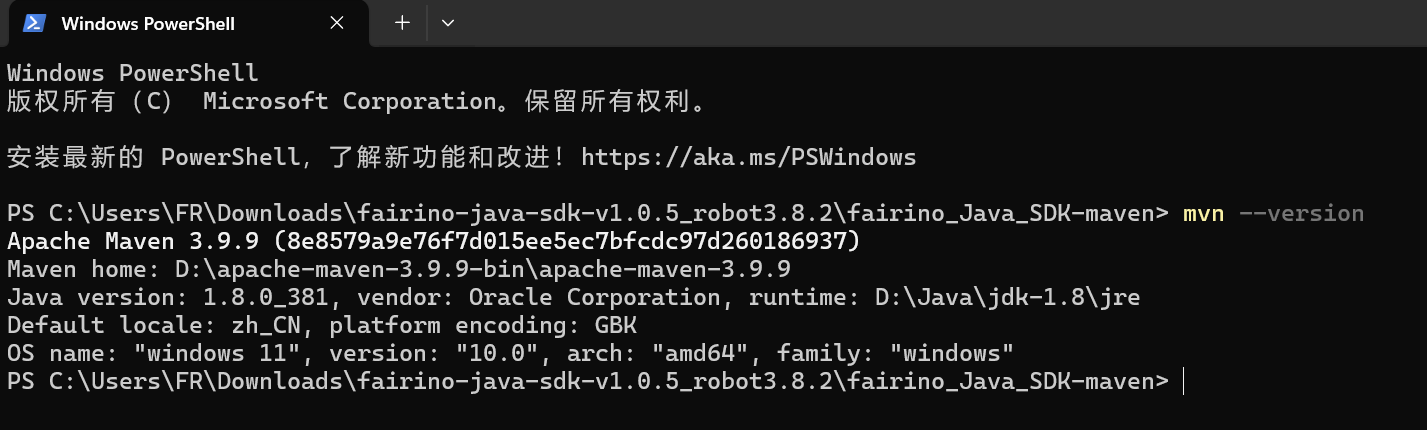
Figure 16.2‑1 Maven Installation and Configuration
② Open a terminal in the Java SDK source code directory and enter mvn package to generate the library files (.jar).
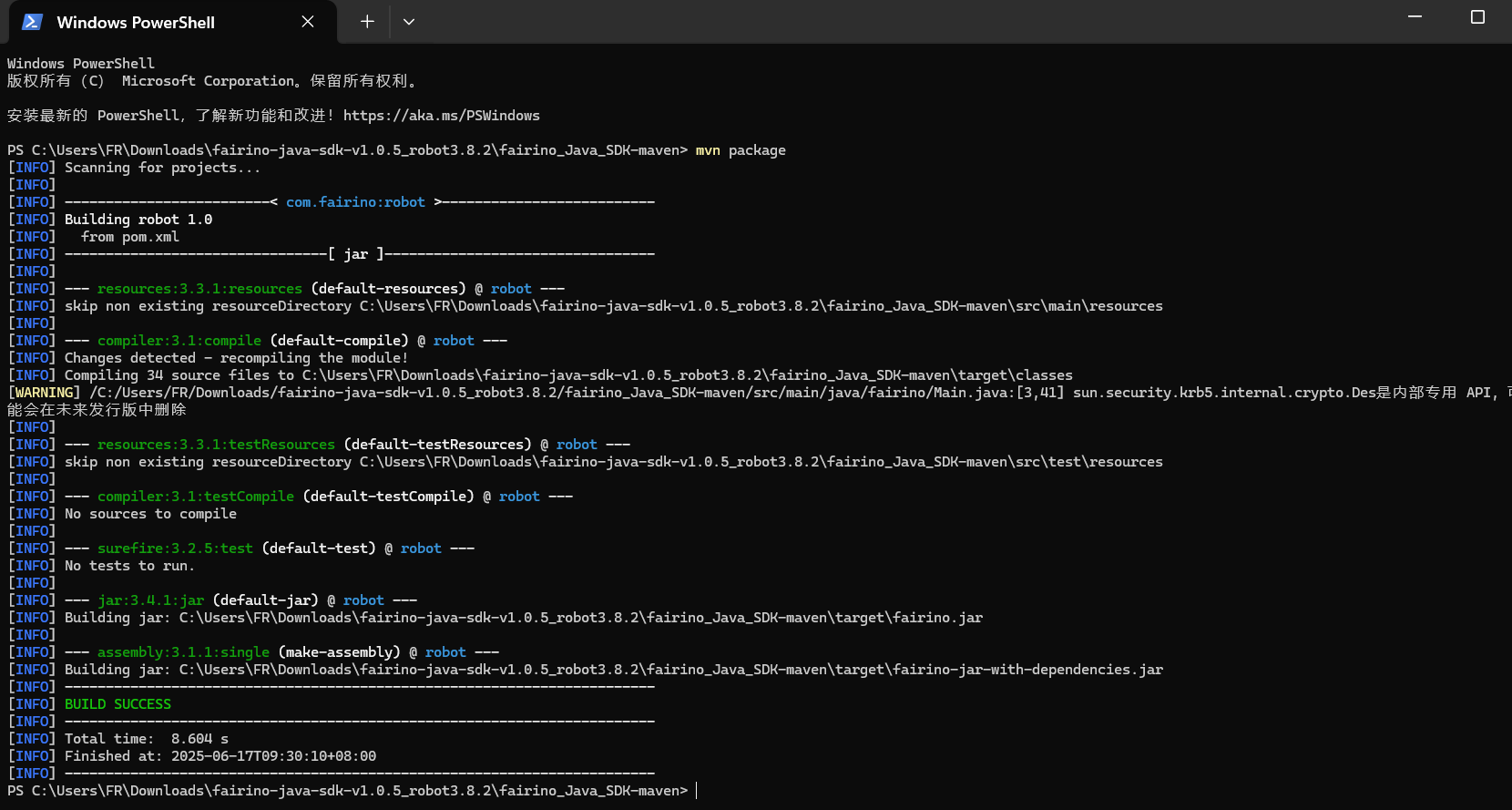
Figure 16.2‑2 Compiling Java SDK into Library Files
③ Locate the “target” folder in the source code directory and find the compiled fairino-jar-with-dependencies.jar and fairino.jar files, as shown in the figure.

Figure 16.2‑3 Generated JAR Files
④ To use the collaborative robot Java SDK, first open the project in IntelliJ IDEA, then navigate to File -> Project Structure -> Libraries, and add the .jar files generated in the previous step. Use import fairino.*; in your files to utilize the generated .jar files.