2. WebApp access login
2.1. Access and log in to the WebApp interface
Turn on the control box and connect the network cable to the PC;
Open the chrome browser on the PC and access the target URL 192.168.58.2;
Enter the user name and password and click Login to log in to the WebApp.
The initial user name is admin and the password is 123.
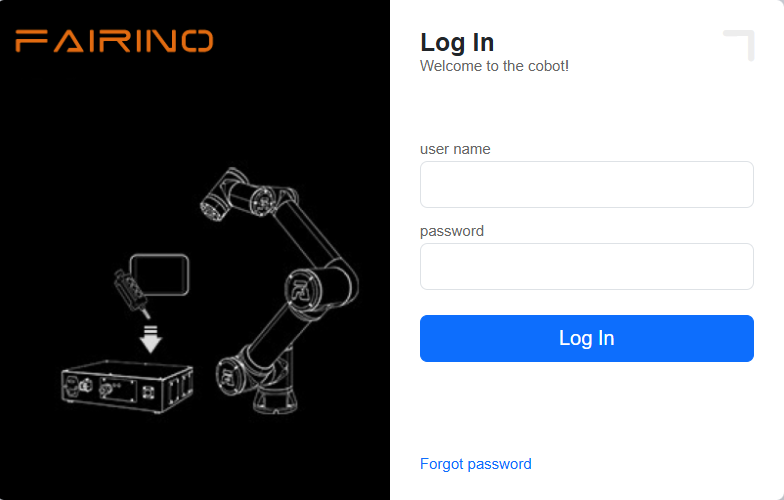
Figure 2.1-1 Login interface
2.2. Simple understanding of WebApp interface
After the login is successful, the system enters the “Initial”. Mainly include:
FAIRINO LOGO;
Menu bar zoom button;
Menu bar;
Robot control area;
Robot status area;
3D simulation robot - 3D scene operation;
3D simulation robot - robot body operation;
Robot supporting functions;
Robot and supporting function status.
The initial interface of the system is shown in the figure below:
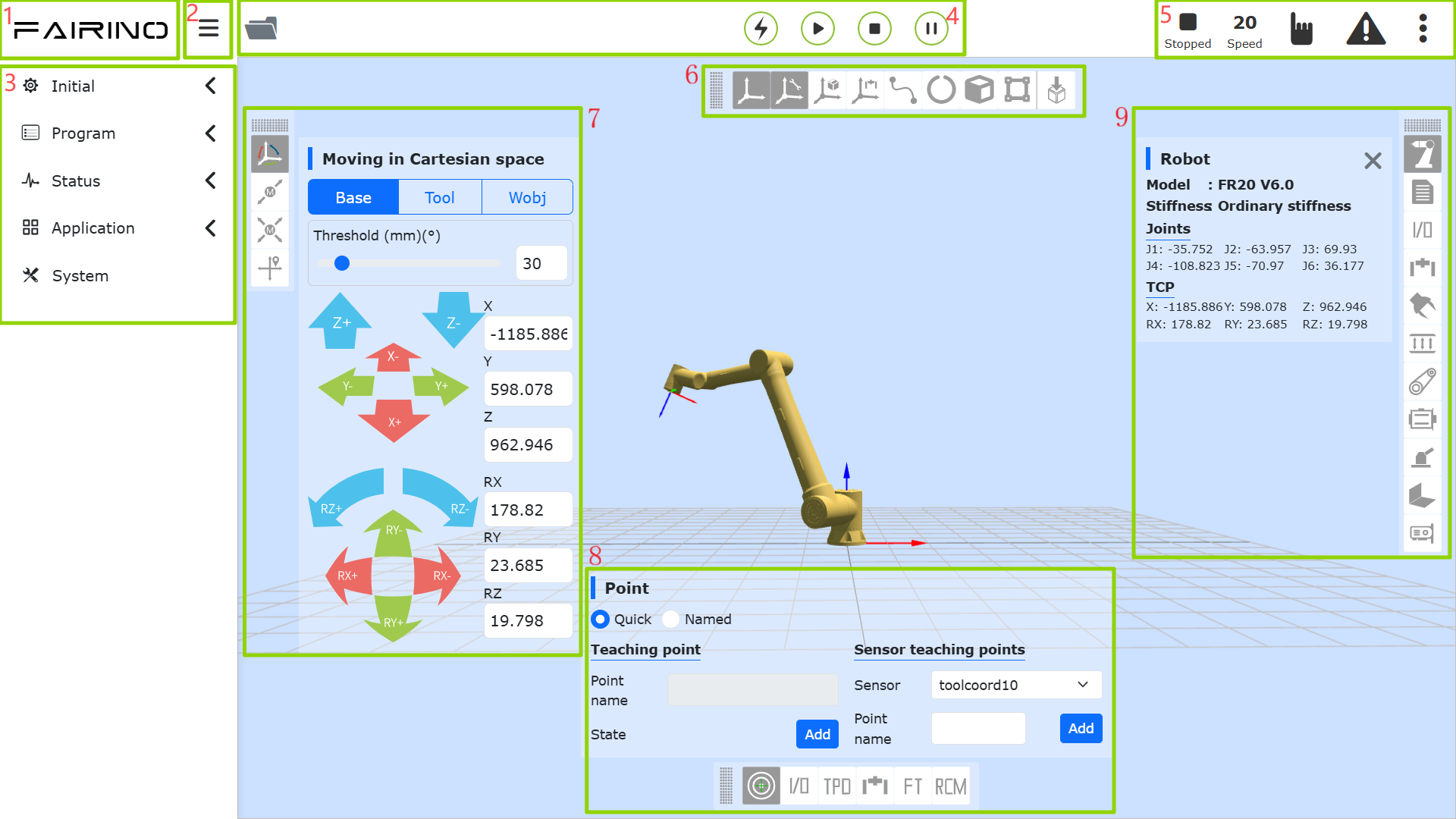
Figure 2.2-1 Schematic diagram of the initial interface of the system
2.2.1. Control area
Note

name: “Press the teach program button”
effect: Open the teaching programs for coding programming, graphical programming, and Node Graph programming.
Note

name: Enable button
effect: Enable the robot
Note

name: Start button
effect: Upload and start running the teaching program
Note

name: Stop button
effect: Stop the current teaching program running
Note

name: Pause/Resume button
effect: Pause and resume the current teaching program
Important
The pause instruction is at the end of the program and cannot be judged.
2.2.2. Status Bar
Note

name: Error state
effect: There is an error in the current robot operation, hide when no error.
Note

name: robot status
effect: Stopped-stop,Running-run,Pause-pause,Drag-drag
Note

name: Robot Tool Coordinate System, Workpiece Coordinate System, Extended Axis Coordinate System, and Load Number
effect: Top Left – Current Tool Coordinate System Number, Top Right – Current Workpiece Coordinate System Number, Bottom Left – Current Extended Axis Coordinate System Number, Bottom Right – Current Load Number
Note

name: Running speed percentage
effect: The speed of the robot when it is running in the current mode
Note

name: Automatic mode
effect: Robot automatic operation mode.When the global speed adjustment in manual mode and automatic mode is turned on and the speed is specified, the global speed will be automatically adjusted to the specified speed
Note

name: Manual mode
effect: Robot manual mode for robot teaching operations.
Note

name: Robot State Fold/Unfold Button
effect: Fold/Unfold Tool Coordinate System, Workpiece Coordinate System, Extended Axis Coordinate System, Load, Robot Drag Status, Local/Remote Mode, Robot Connection Status, BOOT Mode, and Account Information Content
Click the collapse/expand button to view the following status information.
Note

name: Tool coordinate system number
effect: Display the tool coordinate system number of the current application
Note

name: Workpiece coordinate system number
effect: Display the workpiece coordinate system number currently applied
Note

name: Extended axis coordinate system number
effect: Displays the currently applied extended axis coordinate system number
Note

name: Payload
effect: Display the load weight and center of gravity coordinates X, Y, Z of the current application.
Note

name: Drag state
effect: The current robot can drag
Note

name: Drag state
effect: The current robot is not draggable
Note

name: Robot Local Mode
effect: The current robot is controlled via the control box.
Note

name: Robot Remote Mode
effect: Currently, robots can only be controlled through PLC.
Note

name: Connection status
effect: Robot connected
Note

name: Not connected status
effect: Robot not connected
Note

name: Account information
effect: Display username and permissions and logout user